Plan robot motion
The Intrinsic platform's Motion Planner Service provides motion planning and
related operations, such as kinematics and collision checking. It is used by
existing first-party Skills such as MoveRobot and is also available for use by
third party Skills and Services.
The Motion Planner Service is a fundamental service in the Intrinsic platform and is always available to the Skill developer. Like most Intrinsic services, the Motion Planner Service provides a gRPC API. The service itself cannot be configured by Skills. Instead, all relevant parameters such as planning timeouts are passed as part of a Skill's request to the service.
Setup
Before you can follow this guide you must create a Solution with a robot, and you must select it as the target Solution in your development environment. Follow the guides for setting up your development environment and making your first Skill to learn how to do that.
There are two execution modes: "Preview" and "Full". In "Preview" mode only
Skill's preview method is called. The preview method returns what a Skill
would do if executed, without actually executing it. Our example Skill
only implements the execute method, so you must set your Solution's execution
mode to "Full".

In this guide, we will be using the machine_tending:machine_tending_solution
example Solution for demonstrating the Motion Planner Service functionalities
mentioned above. However, this guide can be used with any Solution which
contains a robot kinematic object.
Create a new Skill
Create a new Python Skill in your development environment, and give it the ID
com.example.plan_robot_motion. When prompted for the folder name, give
skills/plan_robot_motion.
Parameters and outputs
The first step when creating a Skill is to decide on its input and output parameters. These are defined by protobuf messages.
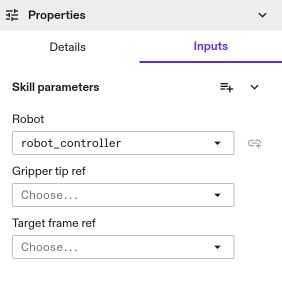
Let's make this Skill accept parameters to reference frames in the Solution. For
this example, we will use one TransformNodeReference type parameter for
defining the robot gripper tip and another TransformNodeReference type
parameter to define a target frame in the world. You can find more information
about various types of world references here.
Put the following into the file plan_robot_motion/plan_robot_motion.proto to
define the PlanRobotMotionParams message.
syntax = "proto3";

package com.intrinsic;

import "intrinsic/world/proto/object_world_refs.proto";

message PlanRobotMotionParams {
  intrinsic_proto.world.TransformNodeReference gripper_tip_ref = 1;
  intrinsic_proto.world.TransformNodeReference target_frame_ref = 2;
}
Ensure the skill manifest includes the following lines to specify that this message defines the skill parameters, enabling the Flowstate Editor to process it correctly.
parameter {
  message_full_name: "com.example.PlanRobotMotionParams"
}
Also, ensure that the build rule for the proto in the BUILD file contains the
correct dependency as follows:
proto_library(
    name = "plan_robot_motion_proto",
    srcs = ["plan_robot_motion.proto"],
    deps = ["@ai_intrinsic_sdks//intrinsic/world/proto:object_world_refs_proto"],
)
Next, build and install the Skill to your target application to check if the parameter fields are correctly reflected in the Skill inputs. It should look as the following image.
Equipment
The equipment objects in the world can be accessed directly using the equipment information passed to the Skill. It is not necessary to add references to Skill's parameter message for the equipment. If the Skill requires equipment, such as a robot or camera, it declares that dependency by adding it to the manifest.
Ensure that the dependencies block in plan_robot_motion.manifest.textproto contains the robot equipment as defined below.
dependencies {
  required_equipment {
    key: "robot"
    value {
      capability_names: "Icon2Connection"
      capability_names: "Icon2PositionPart"
    }
  }
}
Add the following constants to the top of plan_robot_motion.py.
- Python
# Top level constants
ROBOT_EQUIPMENT_SLOT: str = "robot"
Then add the following to the execute() method in plan_robot_motion.py.
- Python
# ... in execute() method:

  # Unpack resource handles.
  robot_handle = context.resource_handles[ROBOT_EQUIPMENT_SLOT]

  # Get connection to world service.
  object_world = context.object_world

  # Get the robot kinematic object from the world.
  robot_kinematic_object = object_world.get_kinematic_object(robot_handle)

  logging.info(f"Current robot joint positions: {robot_kinematic_object.joint_positions}")
Install the Skill again and run it. You will see an additional message like this in the Skill logs.
[-1.4500000000000004, -1.1800000000000719, -2.149999999999944, -1.349999999999984, 1.57, -0.5000000000000004]
Access the Motion Planner Service
The Intrinsic platform provides a motion planning client class for the Motion Planner Service. This client wraps the gRPC interface, providing a convenient class for interfacing to the service with methods provided for each of the planning operations.
Add the following import to the plan_robot_motion.py file.
- Python
from intrinsic.motion_planning import motion_planner_client
Add the following dependency to the build rule for plan_robot_motion.py in the
BUILD file.
"@ai_intrinsic_sdks//intrinsic/motion_planning:motion_planner_client_py",
The following code shows how to get an instance of the client:
- Python
- C++
@overrides(skill_interface.Skill)
def execute(
    self,
    request: skill_interface.ExecuteRequest,
    context: skill_interface.ExecuteContext,
) -> None:

    . . .

    # Get connection to the motion planner service
    mp_client: motion_planner_client.MotionPlannerClient = context.motion_planner
absl::StatusOr<std::unique_ptr<proto2::Message>> skills::DemoSkill::Execute(
  const skills::ExecuteRequest& request, skills::ExecuteContext& context) {
      motion_planning::MotionPlannerClient& planner = context.motion_planner();
  }
The motion planning client is created for a specific world, based on a world ID.
When a planning operation is called on the client, the Motion Planner Service
retrieves the corresponding world from the world service as a first step.
The context.motion_planner above uses the belief world (a specific world
maintained by the world service that represents the current state), which is
usually what you want in a Skill's execute method. If you want to plan for a
different world, you must instantiate the client object with the world ID of the
world you want to reference, as well as the gRPC stub for the Motion Planner
Service.
The Motion Planner Service and client may be treated as stateless (while there may be caching and other optimizations under the hood, calling code shouldn't depend on this).
Plan a Trajectory
The main operation provided by the Motion Planner Service is trajectory planning. This includes path planning, which finds a sequence of waypoints in configuration space, as well as inter-segment blending and time parametrization of that path. Trajectory planning depends on:
- A world - As mentioned above, the world is specified when creating the client. The world includes the relevant collision geometry, kinematic models, and the start configuration of the given arm (the latter can be overridden by the robot specification).
- A robot specification describing the arm for which you are planning the motion - The main required field here is the ID of the robot in the world.
- A motion specification defining the goal and path constraints - It is a flexible representation that allows for specifying various kinds of motions.
In order to specify the parameters for trajectory planning, first we need to add
the following imports to plan_robot_motion.py.
- Python
from intrinsic.motion_planning.proto.v1 import robot_specification_pb2
from intrinsic.motion_planning.proto.v1 import motion_specification_pb2
from intrinsic.moiton_planning.proto.v1 import geometric_constraints_pb2
from intrinsic.world.proto import object_world_refs_pb2
Also, ensure that the build rule for plan_robot_motion.py in the BUILD file
contains the following dependencies.
"@ai_intrinsic_sdks//intrinsic/motion_planning/proto/v1:robot_specification_py_pb2",
"@ai_intrinsic_sdks//intrinsic/motion_planning/proto/v1:motion_specification_py_pb2",
"@ai_intrinsic_sdks//intrinsic/motion_planning/proto/v1:geometric_constraints_py_pb2",
"@ai_intrinsic_sdks//intrinsic/world/proto:object_world_refs_py_pb2",
The following code snippet shows an example of how the robot specification
and motion specification can be constructed and used for planning a trajectory
using the motion planner client. You can add this snippet to the execute
method of your Skill, followed by building and installing it in your application.
- Python
  @overrides(skill_interface.Skill)
  def execute(
      self,
      request: skill_interface.ExecuteRequest,
      context: skill_interface.ExecuteContext,
  ) -> None

      . . .

      # Get connection to the motion planner service
      mp_client: motion_planner_client.MotionPlannerClient = context.motion_planner

      robot_specification = robot_specification_pb2.RobotSpecification(
        robot_reference=robot_specification_pb2.RobotReference(
          object_id=object_world_refs_pb2.ObjectReference(
              by_name=object_world_refs_pb2.ObjectReferenceByName(
                  object_name=robot_kinematic_object.name
              )
          )
        )
      )

      pose_constraint = geometric_constraints_pb2.GeometricConstraint(
          cartesian_pose=geometric_constraints_pb2.PoseEquality(
              moving_frame=request.params.gripper_tip_ref,
              target_frame=request.params.target_frame_ref
          )
      )

      motion_segment = motion_specification_pb2.MotionSegment(target=pose_constraint)
      motion_specification = motion_specification_pb2.MotionSpecification(motion_segments=[motion_segment])

      result = mp_client.plan_trajectory(
          robot_specification=robot_specification,
          motion_specification=motion_specification
      )

      logging.info(f"Trajectory planning completed!")
Enter Parameters and Run
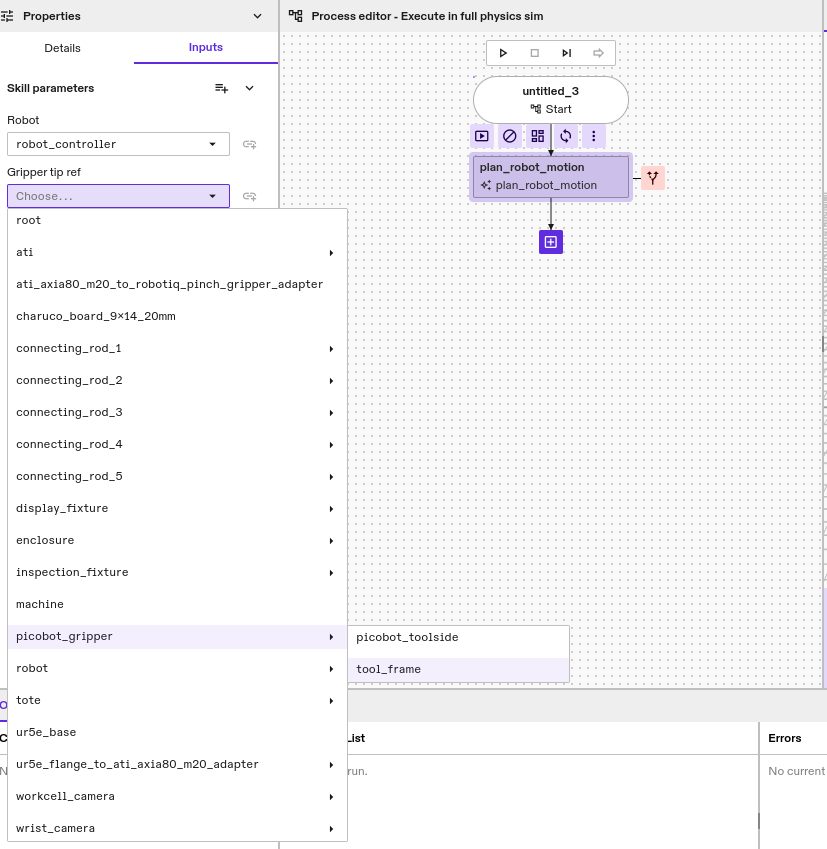
Once the Skill is successfully built and installed in the app, we can use it to
plan motions for different targets. You can add an instance of the Skill to the
process tree and parameterize it as follows for the
machine_tending:machine_tending_solution Solution:
- Choose a gripper tip
- Choose a target frame
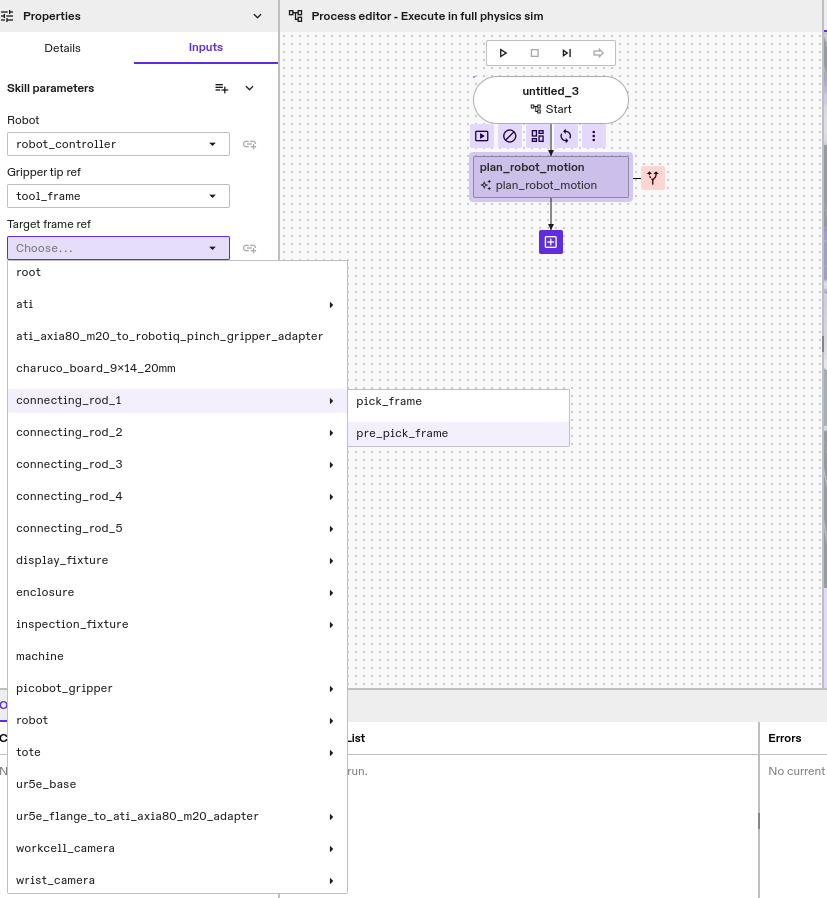
Once, the Gripper tip ref and Target frame ref parameters are set, you can
run the process or the Skill node. If motion planning is successful, the Skill
execution should succeed as well and you should see the
Trajectory planning completed! message in the Skill logs. If not, the Process
error message should specify why motion planning failed. Feel free to experiment
with different target frames to see the results.
Compute Inverse Kinematic Solutions
In addition to trajectory planning, the Motion Planner Service provides forward and inverse kinematics.
Add the following imports to plan_robot_motion.py.
- Python
from intrinsic.icon.proto import joint_space_pb2
from intrinsic.world.proto import collision_settings_pb2
An example of inverse kinematics is shown below, it computes up to eight (if
available) joint configurations of the robot robot for a desired Cartesian
pose_constraint. Depending on the robot and IK solver, the
Process might be seeded with the defined start configuration. The returned
solution will be sorted according to the distance to the defined
starting_joint configuration.
- Python
# Compute IK solutions without collision checking.
options = motion_planner_client.IKOptions(
    max_num_solutions=8)

ik_solutions = mp_client.compute_ik(
    robot_name=ROBOT_EQUIPMENT_SLOT,
    target=pose_constraint,
    starting_joints=[0, 0, 0, 0, 0, 0],
    options=options)

logging.info(f"Computed {len(ik_solutions)} IK solutions for the target!")
None of the solutions returned are by default checked for collisions. If only collision free solutions are desired, collision checking can be specified as part of the IK options. The example below specifies the same IK request as above, but instead of returning all solutions, only collision free solutions that have at least a margin (i.e., distance) of 1 cm between all objects are returned.
- Python
# Compute IK solutions with collision checking.
collision_settings = collision_settings_pb2.CollisionSettings()
collision_settings.minimum_margin=0.01

options = motion_planner_client.IKOptions(
    max_num_solutions=8,
    collision_settings=collision_settings)

ik_solutions_with_collision_checking = mp_client.compute_ik(
    robot_name=ROBOT_EQUIPMENT_SLOT,
    target=pose_constraint,
    starting_joints=[0, 0, 0, 0, 0, 0],
    options=options)

logging.info(f"Computed {len(ik_solutions_with_collision_checking)} ",
    "collision-free IK solutions for the target!")
Forward kinematics queries can be performed similarly. Note that depending on the use case, it may be more efficient to perform forward kinematics directly using the Object World API.
Check Collisions
In case a pre-existing or externally generated trajectory is executed, we strongly suggest to collision check this trajectory before execution. The motion planning API allows to check a set of waypoints for collision. It assumes linear interpolation between those waypoints. The example below shows how to collision check a path consisting of an initial and final configuration. The result is whether the path is in collision.
- Python
# Check collision for path between waypoints.
waypoints= [
    joint_space_pb2.JointVec(joints=[0.0, 0.0, 0.0, 0.0, 0.0, 0.0]),
    joint_space_pb2.JointVec(joints=[0.0, 0.1, 0.0, 0.1, 0.0, 0.1])
]

collision_settings = collision_settings_pb2.CollisionSettings()
collision_settings.minimum_margin=0.01

options = motion_planner_client.CheckCollisionsOptions(
    collision_settings=collision_settings)

check_collision_result = mp_client.check_collisions(
    robot_name=ROBOT_EQUIPMENT_SLOT,
    waypoints=waypoints,
    options=options)

logging.info(f"The path between specified waypoints have collision: {check_collision_result.has_collision}. ",
             f"Debug message: {check_collision_result.collision_debug_msg}")
Source code
The full source code for this example is available in the intrinsic-ai/sdk-examples repository.