Create your Flowstate account
This section is for new users creating their Flowstate account for the first time. You may use either a Google Account or your email address and a password for authentication. We do not support dual authentication or changing your authentication method at this time.
- To access Flowstate, you'll need an invitation email from your organization's Admin. Click on the
Sign up to Flowstatelink in the invitation email. You'll automatically be directed to Flowstate to create an account.
Please click on the link in your email -- do not navigate directly to Flowstate.
- Set up your authentication credentials. There are two main options for signing in to Flowstate: (a) enter your email address and a password of your choice, or (b) authenticate with a Google account.
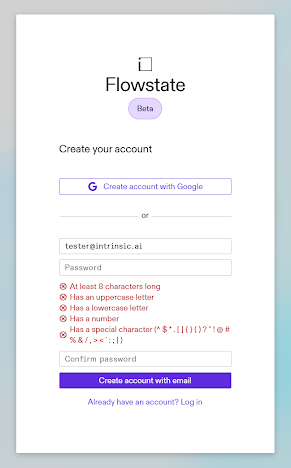
-
Email and password authentication.
-
Enter your email address.
noteIf you enter a different email address from the one where you received your invitation, you will need to verify the new email address before you can sign in.
-
Enter a password of your choice. Passwords must meet minimum strength requirements:
- At least 8 characters long
- Has an uppercase letter
- Has a lowercase letter
- Has a number
- Has a special character: ^ $ * . [ ] ( ) ? " ! @ # % & / \ , < > ' : ; | _ ~ `
- Does not start or end with a blank space
- Does not contain any accented characters
- Does not contain your email address
- Maximum length is 64 characters
Re-enter your password to confirm.
-
-
Google Account authentication. You may authenticate to Flowstate using either your existing Google Account, or you can create a new Google Account and link it to your email address, by following the instructions offered by Google here.
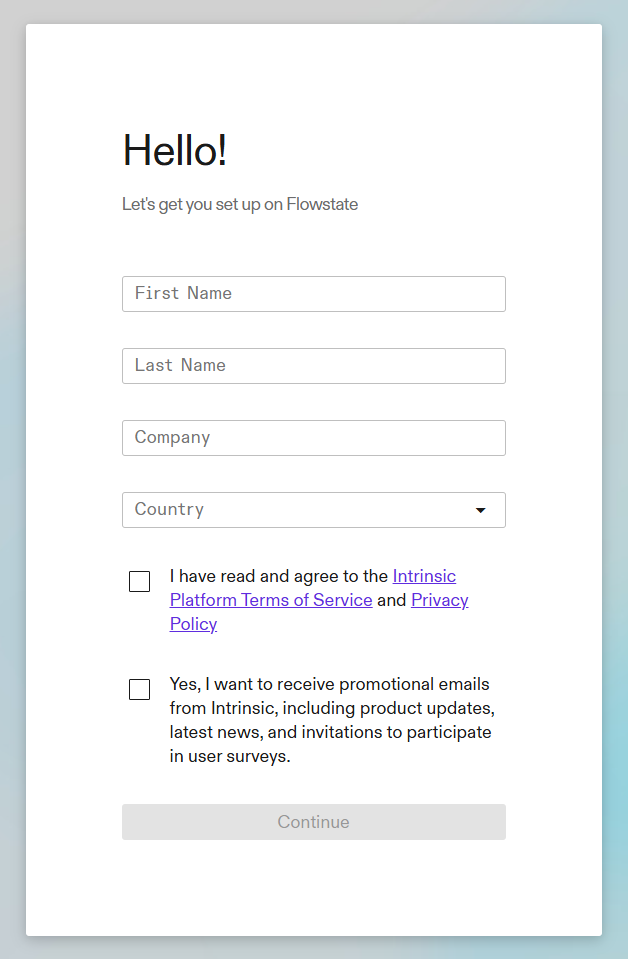
- Set up your account. The following fields are required: full name, country, and agreeing to the Platform Terms of Service and Privacy policy. It is optional to join our marketing and survey email lists; however, we recommend joining to stay up-to-date on the latest Flowstate features, capabilities, and events.
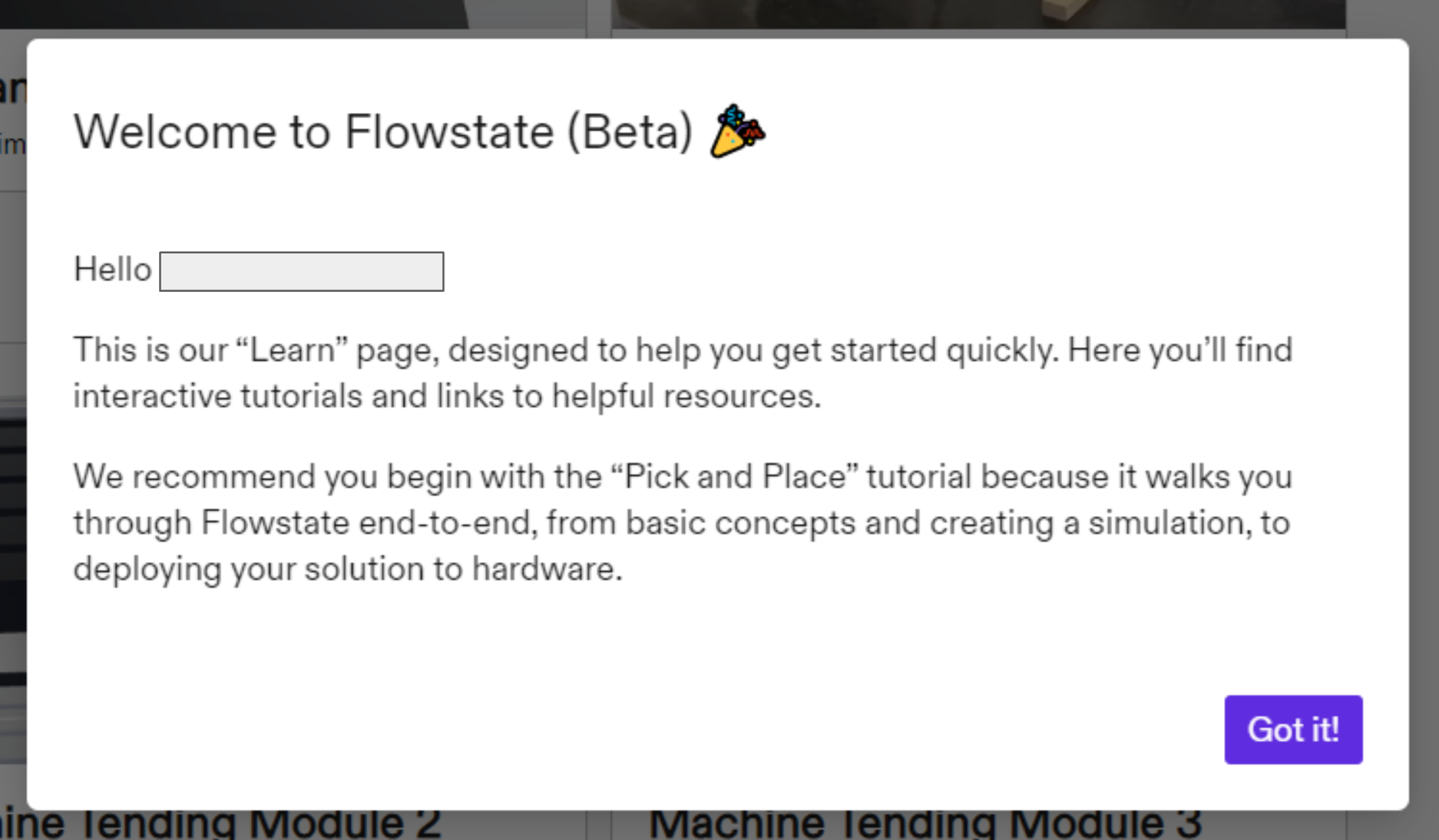
- We welcome you with a brief explanation of the Learn page and our
recommendation for getting started. Click
Got it!
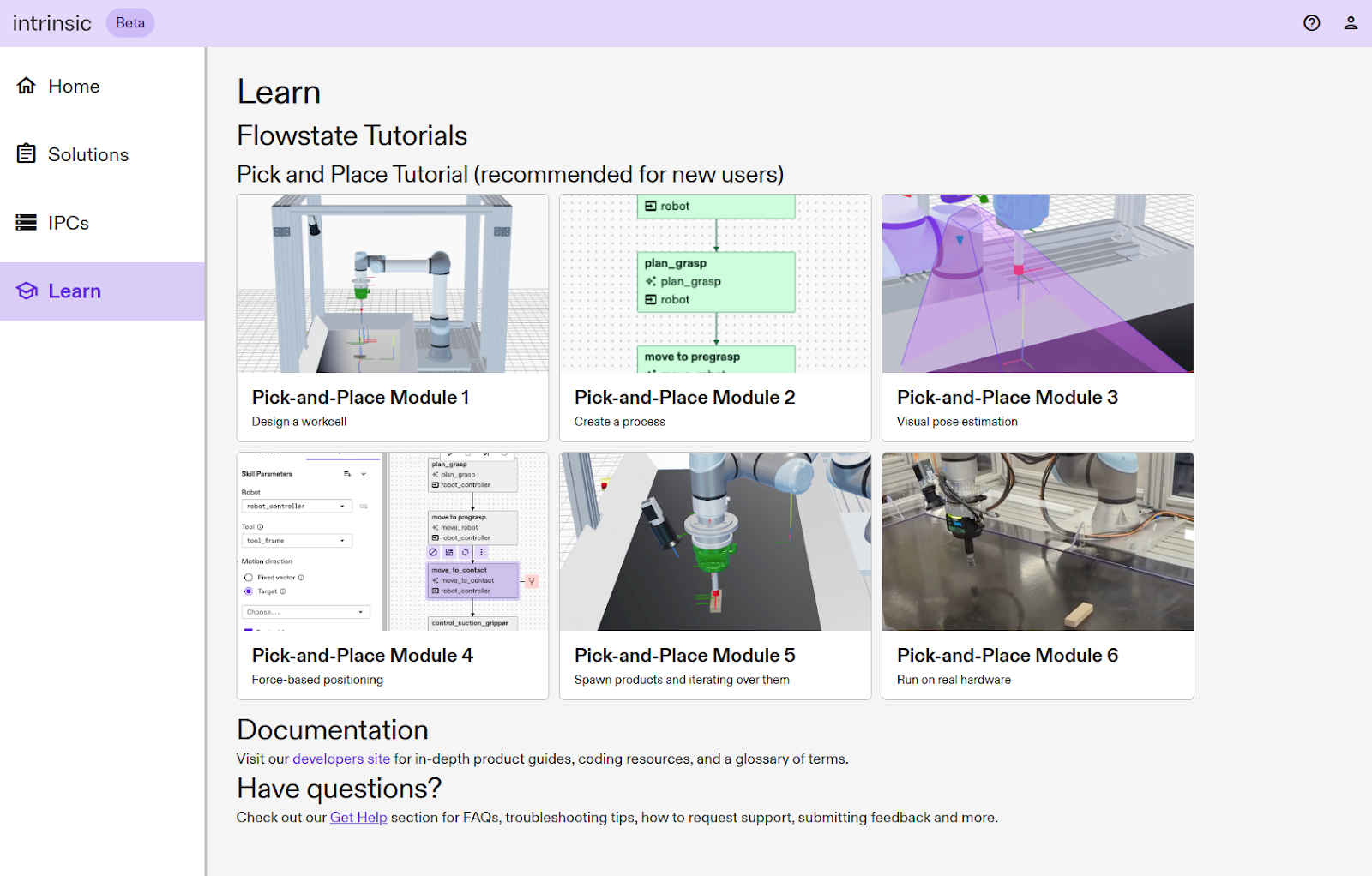
- You’ll be dropped off on the Learn page, which highlights tutorials from our developer documentation site. We recommend you start with Pick and Place Module 1. When clicked, the tutorial will open in a new browser tab. The Learn page is always accessible from the left (navigation) panel.
On future visits to Flowstate, you'll land on the Home page.