Access the belief world
In Flowstate, a belief world is a representation of the platform's beliefs about the state of the world. It is an internal model that the robot maintains to reason about and make decisions based on its perception of the environment. The belief world is typically created by integrating sensor data and expected effects of control outputs. This includes information about the robot's own position and orientation, the locations and properties of objects in the environment, and any other relevant aspects of the world that the robot needs to consider for its tasks. The belief world captures the platform's best estimate of reality at the current point in time.
The code snippets in this guide assume you have set up a dev container and have a basic Python Skill up and running. You can find the complete code for the Skill developed here by navigating to the bottom of this page. Though the snippets here are in Python, you can write an equivalent Skill in C++ to access the belief world.
Create a Skill
Create a Python Skill named com.example.use_world with the folder name
skills/use_world. If you're unsure how, then
follow this guide.
The ObjectWorldClient
The belief world is managed by and contained within the World Service. It maintains the physical and kinematic characteristics of the environment, including a workcell, robots, hardware, and workpieces. Skills in a Process coordinate their activities by querying and updating the World Service.
Skills interact with the World Service by using an ObjectWorldClient. Skills
querying the World Service get a handle to the specific resources they requested
and only get the data they request. Because the data are stored centrally,
Skills must query the service every time they want data, and they must update
the World Service with new data to share it with other Skills.
To use ObjectWorldClient, add these imports to the top of use_world.py.
- Python
from intrinsic.world.python import object_world_client
from intrinsic.world.python import object_world_resources
You also need to add these to the deps section of your build rule for
use_world_py in BUILD:
py_library(
    name = "use_world_py",
    srcs = ["use_world.py"],
    srcs_version = "PY3",
    deps = [
        # Other deps omitted, insert the following two lines in deps
        "@ai_intrinsic_sdks//intrinsic/world/python:object_world_client",
        "@ai_intrinsic_sdks//intrinsic/world/python:object_world_resources",
        # Other deps omitted
    ],
)
The context object passed to the Skill's execute method provides an
ObjectWorldClient.
Skills created with the Skill template include a call to logging.info to
demonstrate accessing an input parameter and logging a value:
- Python
  logging.info(
      '"text" parameter passed in Skill params: ' + request.params.text
  )
Delete these lines and replace them with the last two lines of the following
snippet to get access to the world object.
- Python
  @overrides(skill_interface.Skill)
  def execute(
      self,
      request: skill_interface.ExecuteRequest,
      context: skill_interface.ExecuteContext,
  ) -> None:

    # Get a client to the world service.
    world: object_world_client.ObjectWorldClient = context.object_world
Add references to world resources
Using the ObjectWorldClient, a Skill can interact with the world by gaining
access to three object types: Objects, Frames, or Transform Nodes. An
Object represents physical objects in the world, a Frame represents a frame of
reference, while a Transform Node can represent either an Object or a Frame. The
term Transform Node derives from the fact that Objects and Frames together form
the nodes of a tree of transforms (relative poses), called the scene. Loosely
put, you can think of a Transform Node as "something with a pose and a parent".
Objects and frames are Transform nodes
The Intrinsic platform provides multiple classes that are used to reference
these resources:
ObjectReference, FrameReference, and TransformNodeReference.
ObjectReferencecan be set to any object in the world. It cannot reference a frame.FrameReferencecan be set to any frame in the world. It cannot reference an object.TransformNodeReferencecan be set to any object or frame in the world.
To be able to query properties of these resources and modify them at execution time, configure a Skill to receive references to the resources in its parameter list.
The first step to adding references to world objects to your Skill's parameter
list is to add a dependency on object_world_refs.proto to the deps entry of
your Skill's proto_library rule in the BUILD file. The
object_world_refs.proto file contains definitions for the three reference
types needed to add these types to your Skill's parameter list. The
proto_library definition in the BUILD file should look like this:
proto_library(
    name = "use_world_proto",
    srcs = ["use_world.proto"],
    deps = ["@ai_intrinsic_sdks//intrinsic/world/proto:object_world_refs_proto"],
)
The next step is to add the kind of reference you need to your Skill's message
definition file. Put the following content into use_world.proto so that all
three kinds of references will be passed to your Skill when it executes.
syntax = "proto3";

package com.example;

import "intrinsic/world/proto/object_world_refs.proto";

message UseWorldParams {
  // An ObjectReference can be set to any object in the world. It cannot
  // reference a frame.
  intrinsic_proto.world.ObjectReference object_ref = 1;

  // A FrameReference can be set to any frame in the world. It cannot reference
  // an object. Often you'll want a TransformNodeReference instead.
  intrinsic_proto.world.FrameReference frame_ref = 2;

  // A TransformNodeReference can be set to any object or frame in the world.
  // Usually this is the right choice if you need "a pose from the world".
  intrinsic_proto.world.TransformNodeReference transform_node_ref = 3;
}
Double-check that the Skill manifest use_world.manifest.textproto says to use
the UseWorldParams message for the Skill's parameters. It must include
message_full_name in the parameter field.
parameter {
  message_full_name: "com.example.UseWorldParams"
  default_value {
    type_url: "type.googleapis.com/com.example.UseWorldParams"
  }
}
Resolve world references
The solution developer can use the Flowstate portal to specify objects and frames in the world that the Skill receives through its parameter message. (Refer to Set Skill parameters for more details.) Each instance of a Skill can be bound to different objects, as required.
The Skill needs to resolve given references. Replace the Skill's execute
method in use_world.py with the following code. The following example
demonstrates how a Skill resolves references. The code uses the
ObjectWorldClient to resolves each of the references defined in the Skill's
parameter message.
- Python
  @overrides(skill_interface.Skill)
  def execute(
      self,
      request: skill_interface.ExecuteRequest[use_world_pb2.UseWorldParams],
      context: skill_interface.ExecuteContext,
  ) -> ...:
    # Get connection to world service.
    world: object_world_client.ObjectWorldClient = context.object_world

    # Resolve ObjectReference.
    obj: object_world_resources.WorldObject = world.get_object(
        request.params.object_ref
    )

    # Resolve FrameReference.
    frame: object_world_resources.Frame = world.get_frame(
      request.params.frame_ref
    )

    # Resolve TransformNodeReference, obtaining an instance of either
    # WorldObject or Frame.
    obj_or_frame: object_world_resources.TransformNode = (
        world.get_transform_node(request.params.transform_node_ref)
    )
You may now call methods on the newly-created objects. For example, add the
following code to the execute method, immediately after the previous section.
The code prints the name of each object and its pose in frame of its parent
object.
- Python
    logging.info(f'object.name: {obj.name}')
    logging.info(f'obj.parent_t_this: {obj.parent_t_this}')

    logging.info(f'frame.name: {frame.name}')
    logging.info(f'frame.parent_t_this: {frame.parent_t_this}')

    logging.info(f'obj_or_frame.id: {obj_or_frame.id}')
    logging.info(f'obj_or_frame.parent_t_this: {obj_or_frame.parent_t_this}')
Enter parameters and run
Now that the Skill has code to access multiple objects in the world, run it and look at the logs to see what it did. Running it requires creating a Solution, adding the Skill to a process, configuring its parameters, and then running the process.
First create a new Solution and add the following HardwareDevice instances:
Universal Robots UR3e Hardware Moduleas "robot"Universal Robots real-time control serviceas "robot_controller"Basler cameraas "basler_camera"
Add a Process node for your Skill using the Flowstate Process editor. Click the
Add Process button and then select your Skill from the list of installed
Skills.
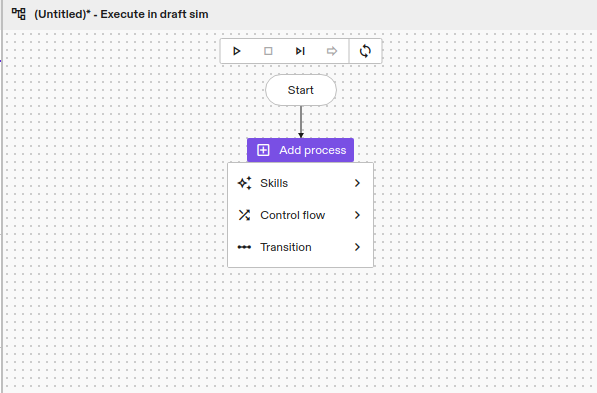
Next, make sure the newly added Skill is selected and click the Inputs tab
in the Skill's Properties panel. Enter the following values for the Skill's
parameters.
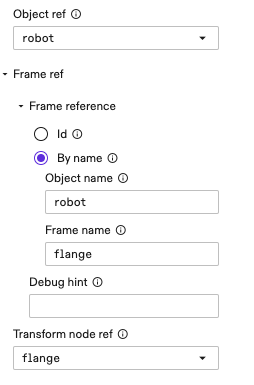
Start the Process by clicking the start Process icon in the Process editor
window. The specified values are passed to the Skill's execute method in the
request.params variable.
After running the Process, click the Stream Logs link above the Skill's
py_skill rule in the BUILD file to view the log output for the Skill as
described in the Run your first Skill guide.
You should see logs like the following:
object.name: robot
obj.parent_t_this: Pose3(Rotation3([0i + 0j + 0k + 1]),[-0.212482   -0.06912997  0.10227328])
frame.name: flange
frame.parent_t_this: Pose3(Rotation3([-0.7071i + 1.46e-13j + -2.274e-16k + -0.7071]),[-0.45675 -0.22315  0.0665 ])
obj_or_frame.id: ofid_3185901571
obj_or_frame.parent_t_this: Pose3(Rotation3([-0.7071i + 1.46e-13j + -2.274e-16k + -0.7071]),[-0.45675 -0.22315  0.0665 ])
Query objects and frames
The World Service provides access a fourth type called KinematicObject. It is
related to the previous types according to the following inheritance hierarchy:

Depending on the type of reference you are using in the Skill parameter message, each object type provides different get methods with different return types.
The classes returned by the ObjectWorldClient, such as WorldObject,
KinimaticObject and Frame are just client-side representations of the
corresponding objects or frames in the World Service. They are a read-only
snapshot of the object or frame which is taken at the time world.get_object()
or world.get_transform() is called.
Query equipment objects
The equipment objects in the world can be accessed directly using the equipment information passed to the Skill. It is not necessary to add references to Skill's parameter message for the equipment. If the Skill requires equipment, such as a robot or camera, it declares that dependency by adding it to the manifest.
Make your Skill require a robot and a camera by adding the following to
use_world.manifest.textproto.
dependencies {
  required_equipment {
    key: "camera"
    value {
      capability_names: "CameraConfig"
    }
  }
  required_equipment {
    key: "robot"
    value {
      capability_names: "Icon2Connection"
      capability_names: "Icon2PositionPart"
    }
  }
}
Add the following constants to the top of use_world.py.
- Python
# Top level constants
ROBOT_EQUIPMENT_SLOT: str = "robot"
CAMERA_EQUIPMENT_SLOT: str = "camera"
Then add the following to the execute() method in use_world.py below the
logging calls that were added earlier.
- Python
# ... in execute() method:

    # Unpack resource handles.
    camera_handle = context.resource_handles[CAMERA_EQUIPMENT_SLOT]
    robot_handle = context.resource_handles[ROBOT_EQUIPMENT_SLOT]

    # Resource handles can be used in place of world references.
    camera_obj: object_world_resources.WorldObject = world.get_object(
        camera_handle
    )

    # If we know that an object is a robot, we can also get it as a
    # KinematicObject which has additional properties.
    robot_kinematic_obj: object_world_resources.KinematicObject = (
        world.get_kinematic_object(robot_handle)
    )
Install the Skill again and run it. You will see an additional message like this in the Skill logs.
[-1.4500000000000004, -1.1800000000000719, -2.149999999999944, -1.349999999999984, 1.57, -0.5000000000000004]
Update joint positions
It is possible to use ObjectWorldClient to get and set the belief about a
robot's joint positions. Add the following to the execute() method in
use_world.py below the code we added earlier. This code will change the belief
about the joint positions.
- Python
# Get the joint positions of the robot.
robot_joints = robot_kinematic_obj.joint_positions
logging.info(robot_joints)

# Update the robot joints, operating on the robot in the belief world.
# Note the values in this example are valid only for a UR3e robot.
world.update_joint_positions(
    robot_kinematic_obj,
    [1, -1.725, 1.111, -1.219, -1.523, 3.14]
)
# We need to get a newer snap shot of the robot kinematic object
updated_robot_kinematic_obj = world.get_kinematic_object(robot_handle)
udpated_robot_joints = updated_robot_kinematic_obj.joint_positions
logging.info(
    f"updated robot joint positions: f{udpated_robot_joints}")
Calling update_joint_positions updates the position of the robot's joints in
the belief world; this does not actually move the robot or change the real joint
positions in any way.
The belief world is constantly being updated by sensors and perhaps other Skills, so any snapshot of an object or frame may be stale.
Special objects and frames
There are a few special objects and frames that are available to a Skill:
| Item | Description |
|---|---|
| The "root" WorldObject | The "root" WorldObject represents the world origin and is always available. |
| Each camera's "sensor" frame | Every camera has a frame called "sensor" which represents the origin of the camera sensor (as opposed to the frame of the camera object itself, which represents the origin of the camera's geometry). |
| Each robot's "flange" frame | Every robot has a frame called "flange" which represents the flange of a robot arm according to the ISO 9787 standard. |
The following code demonstrates how to access each of these special objects and frames:
- Python
First add this import to the top of use_world.py.
from typing import cast
Then add the following to the bottom of the execute() method of your Skill.
  # Get the "root" WorldObject.
  root_object = cast(object_world_resources.WorldObject, world.root)

  # Get the "sensor" frame from a camera.
  sensor_frame = cast(object_world_resources.Frame, camera_obj.sensor)

  # Get the "flange" frame from a robot.
  flange_frame = cast(object_world_resources.Frame, robot_kinematic_obj.flange)

  logging.info(root_object)
  logging.info(sensor_frame)
  logging.info(flange_frame)
Install the Skill again and run it. You will see additional messages like these in the Skill logs.
root: WorldObject(id=root)
 |=> building_block (id=ofid_2116681730)
 |=> robot (id=ofid_3185901570)
 |=> basler_camera (id=ofid_3948085250)
Frame(name=sensor, id=ofid_3948085253, object_name=basler_camera, object_id=ofid_3948085250)
Frame(name=flange, id=ofid_3185901571, object_name=robot, object_id=ofid_3185901570)
Common world operations
Now, using the WorldObject, you can perform some common yet useful operations.
Get the transform between any two nodes
You can query the transform between any two nodes in the transform tree - where
either node can be an object or a frame - using the world.get_transform()
method. The nodes don't have to be parent and child.
For example:
- Python
  root_t_obj = world.get_transform(root_object, obj)
  obj_t_frame = world.get_transform(obj, frame)
  robot_t_sensor = world.get_transform(robot_kinematic_obj, camera_obj.sensor)
  sensor_t_obj = world.get_transform(camera_obj.sensor, obj)

  logging.info(root_t_obj)
  logging.info(obj_t_frame)
  logging.info(robot_t_sensor)
  logging.info(sensor_t_obj)
Install the Skill again and run it. You will see additional messages like these in the Skill logs.
Pose3(Rotation3([0i + 0j + 0k + 1]),[0. 0. 0.])
Pose3(Rotation3([-0.7071i + 0.7071j + 0k + 0]),[0. 0. 0.])
Pose3(Rotation3([2.776e-17i + 2.448e-12j + -2.448e-12k + 1]),[0. 0. 0.])
Pose3(Rotation3([-2.776e-17i + -2.448e-12j + 2.448e-12k + 1]),[0. 0. 0.])
Set the transform between two directly connected objects
To "move" any object or frame you can use world.update_transform().
For example, the following code sets a transform between two objects which are directly connected in the transform tree (where one is the parent of the other):
- Python
First add the following import to the top of use_world.py.
from intrinsic.math.python import data_types
Then add the following to the bottom of your Skill's execute() method.
    world.update_transform(
        world.root, obj, data_types.Pose3(translation=[1.0, 2.0, 3.0])
    )

    # Prints: Pose3(<old pose>)
    logging.info(obj.parent_t_this)

    # Get a fresh snapshot of the object ('obj' is just a local snapshot and
    # does not get updated automatically!).
    obj_new = world.get_object(request.params.object_ref)

    # Prints: Pose3(Rotation3([0i + 0j + 0k + 1]),[1. 2. 3.])
    logging.info(obj_new.parent_t_this)
Install the Skill again and run it. You will see additional messages like these in the Skill logs.
Pose3(Rotation3([0i + 0j + 0k + 1]),[0. 0. 0.])
Pose3(Rotation3([0i + 0j + 0k + 1]),[1. 2. 3.])
Set a transform between two objects that are not directly connected
You may need to set a transform between two objects which are not directly connected. For example, say there is a robot with a camera on its end effector, and you have a Skill that is going to update the pose of the object based on an image from the camera.
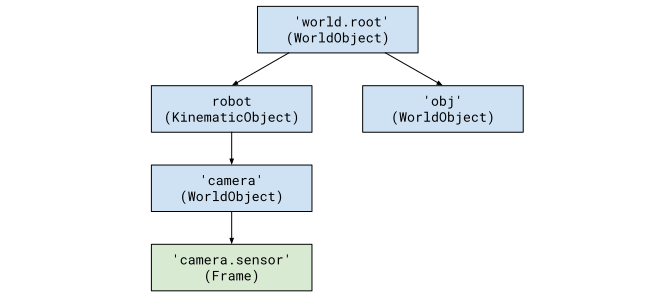
In this case, you must specify which transform is going to be modified with the
new information. That transform is specified with the node_to_update parameter
of the world.update_transform() method.
Add the following to the bottom of the execute() method of your Skill.
- Python
  # Pretend the pose came from detecting the object in an image from the
  # camera.
  observed_sensor_t_obj = data_types.Pose3(translation=[-1.0, -2.0, -3.0])

  # Update root_t_obj (= 'obj.parent_t_this') such that sensor_t_obj becomes
  # equal to 'observed_sensor_t_obj'. The chain of transforms from the root
  # object to the sensor object will not be modified, i.e., we are just moving
  # the object 'obj' and not the camera or the robot.
  world.update_transform(
      node_a=camera_obj.sensor,
      node_b=obj,
      a_t_b=observed_sensor_t_obj,
      # Supports any node on the path from 'node_a' to 'node_b'.
      node_to_update=obj,
  )
Source code
The full source code for this example is available in the intrinsic-ai/sdk-examples repository