Apply force
ApplyForceActions is used to program universal force control tasks. To this
end, it provides it provides a set of ForcePrimitives which can be connected
in a state-machine. The state machine has a set of states which are based on
force primitives. The states are connected with
transitions and every transition triggers on a condition.
The task frame
The task frame is a frame in the world in which all forces and primitives are expressed. If a primitive defines a direction, this direction is expressed in the task frame. The task frame is static and does not move over a skill execution.
The force primitives
- Make contact move the tool from freespace into contact.
- Apply force applies up to three force and torque vectors.
- Push applies a force combined with oscillation around the push direction.
- AlignRotationWithFrame rotates the tool towards a target frame.
Make contact
Moves the robot tool in a direction with a configurable maximum contact force. The main use of this primitive is to move the robot tool from freespace into contact.
The controller_params allow changing the stiffness orthogonal to the motion
direction. There is the option to define a specifc stiffness value and the
no_compliance option. In that case the robot is only compliant in the motion
direction.
It can be combined with a In Contact condition afterwards to ensure that the
robot is in contact.
Useful conditions with Make contact
In contactwill trigger if any force is sensed.
Apply force
Applies up to three forces or torques on the tool. Each force and torque can be defined independently and all of them are applied. The forces and torques have to point in independent directions.
The controller_params allow changing the stiffness orthogonal to the motion
directions. All force and torque directions are considered here: For one motion
direction the controller params behave the same as for Make contact. For two
force directions the tool will be compliant in the plane created by the two
force directions and the configureable stiffness is applied outside of the
plane. For three force directions the tool is compliant in the whole space.
If a force is defined the tool will move in that direction and apply the defined force if it is in contact.
If a force or torque of zero is defined, the robot will be compliant in that direction but it will not move. This is useful for alignment tasks like the compliant grasp
Useful conditions with Apply force
- The
In contactcondition triggers if any force is sensed. - The
Force reachedcondition triggers if all defined forces and torques are reached. It considers the defined directions and only triggers if a force is sensed in that direction. Latch detectedtriggers if the tool does not move anymore.
Push
The push primitive applies a force in one direction and can in addition oscillate around this direction. This is useful to avoid that an insertion get stuck.
The rotational oscilation will add a sinus oscillation around the motion direction axis. The used frequency and amplitude can be configured and have a high influence on the peformance. The gear insertion example uses the rotational osciallation for an reliable insertion.
The translational osciallation will move the tool orthogonal to the motion direction. The amplitude of the motion and the motion speed can be configured too.
Useful conditions with Push
Latch detectedtriggers if the tool performs no translational motion anymore. This is a good indicator that a Push finished.
Align rotation with frame
This primitive rotates the tool towards a reference frame. It only considers the reference orientation, not the reference position. That means that no translational motion is performed. This primitive is used in the gear insertion example to perform the rotation.
The primitive can apply an additional force to ensure that the contact is kept while doing the rotation.
This primitive is sensitive on the rotational stiffness which can be configured
in the controller_params. A higher stiffness results in a faster rotation. In
the translational directions the tool is always compliant.
The reference can be a frame in the world, the task frame or a task frame offset.
Useful conditions with Align rotation with frame
- The Cartesian target reached condition in
orientationmode trigger is the reference orientation is reached.
Conditions
In contact
The tool is in contact with the environment. Triggers if a small force in any direction is sensed.
Force reached
The forces and torques in all defined directions are reached. It considers the direction of the force and not only the value.
Latch detected
The tool stopped moving. Triggers if the tool moved less than the minimum displacement in the last second. The minimum displacement is a tuning parameter which often has to be changed.
This condition is useful to detect if the tool is in a stable contact or if an insertion reached the end.
Timeout
A timeout after a configureable amount of seconds.
Cartesian target reached
The reference pose is reached. This condition has three modes:
- In the
orientationmode only the orientation error is checked. - In the
positionmode only the position error is checked. - In the
position and orientationmode the whole pose is checked.
The thresholds to define a reached position and orientation can be configured.
ICON condition
The ICON condition can be used to build a custom condition based on action state variables. Using state variables is explained in the ICON client API. The available state variables can be found in the force primitive action documentation
Translational and rotational compliance
To achieve good interaction dynamics, it is required to set a suitable
virtual_translational_inertia and virtual_rotational_inertia in the force
control settings. The values should be approximately be 1.5 - 2.0 times the real
robot payload. Please note that the rotational inerta has the unit kg*m^2 and
the numerical value usually is in the order 0.01 - 1.0.
If the inertia is too high, the robot tool will always feel very stiff and not compliant. If the inertia is too low, the robot will move fast but can become unstable and bounce in contact.
Contact stability and motion velocity
To ensure a stable contact and a fast motion, the virtual inertia, the environment stiffness, and the forces, all have to be in the correct range. Here are some rules of thumb:
- Higher forces result in a faster but less stable motion.
- A lower environment stiffness value result in a faster but less stable motion.
- A compliant environment (for example a rubber surface) allows faster motions.
- Smaller virtual inertia results in a faster but less stable motion.
In most applications it makes sense to set the virtual inertia depending on the payload. And the environment stiffness depending on the used tool and products. The virtual inertia usually has to be higher than the real payload inertia.
Examples
Compliant grasp
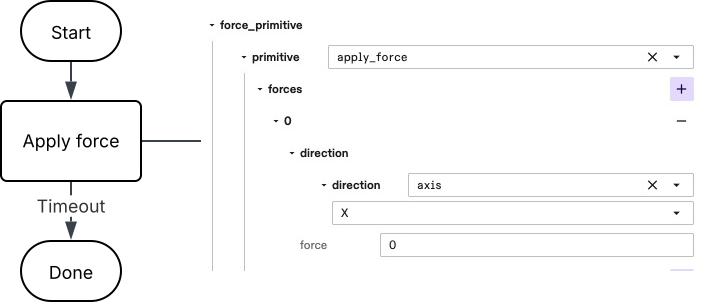
The compliant grasp can for example be used to grasp a workpiece from a fixture, where the fixture position is not known exactly. While the gripper is closed, the tool is compliant in the closing direction. That results in centering the gripper precisely over the workpiece.
The compliance can be reached by using a state-machine with a single action:
Gear insertion
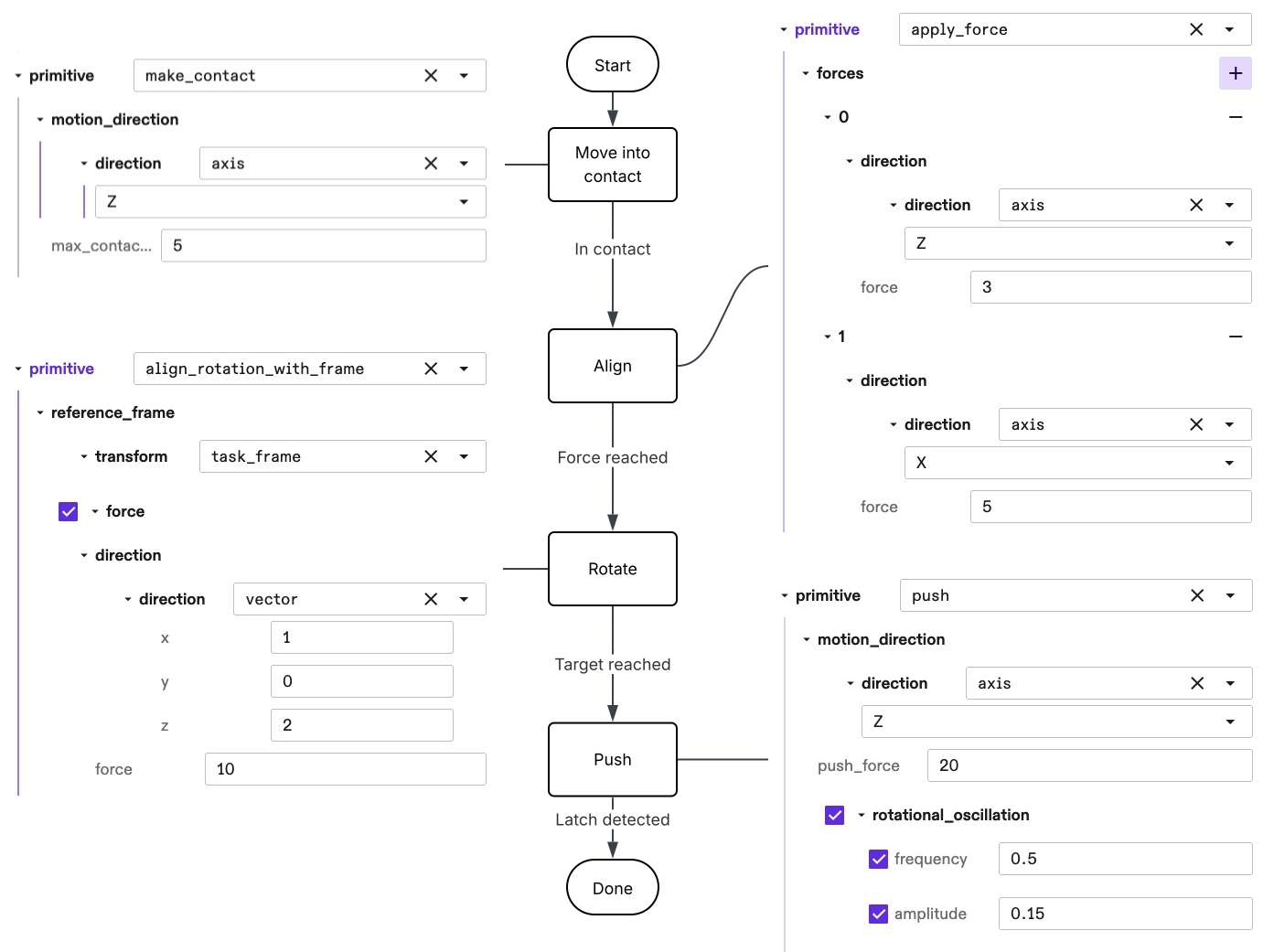
The NIST board gear insertion is an example for a tilt insertion: A gear is inserted on a pin.
This can be done with a sequence of force primitives:
- Position the gear over the pin with a tilted angle using
move-robot. - Move the gear in contact with the pin with the
Make contactprimitive. - Align the gear and the pin with the
Apply forceprimitive. - Rotate the gear with the
Align rotation with frameprimitive. - Push the gear downwards with the
Pushprimitive.
The full state machine with parametrised primitives is visualized here:
Use the skill with the SBL
The apply force actions skill can be used by the SBL Python API but the usage is oftentimes nontrivial because of the advanced parametrization. Use the following imports to shorten the code:
apply_force = skills.ai.intrinsic.apply_force_actions

AllForcePrimitives = apply_force.intrinsic_proto.force.AllForcePrimitives
ConditionPrimitive = apply_force.intrinsic_proto.force.ConditionPrimitive
Direction = apply_force.intrinsic_proto.force.Direction
MakeContact = apply_force.intrinsic_proto.force.MakeContact
State = apply_force.intrinsic_proto.force.State
StateMachine = apply_force.intrinsic_proto.force.StateMachine
Transition = apply_force.intrinsic_proto.force.Transition
ContactStiffnessParams = apply_force.intrinsic_proto.manipulation.skills.ContactStiffnessParams
ContactStiffnessValues = apply_force.intrinsic_proto.manipulation.skills.ContactStiffnessValues
An example usage with one make Make contact primitive can be created like
this:
my_force_skill = apply_force(
    tool=world.gripper.tool_frame,
    task_frame=world.nist_board.gear,
    environment_stiffness=ContactStiffnessParams(
        default_contact_stiffness=ContactStiffnessValues.CONTACT_STIFFNESS_MEDIUM,
    ),
    actions = StateMachine(
        start_state="start",
        states = [
            State(
                name="start",
                force_primitive=AllForcePrimitives(
                    make_contact=MakeContact(
                        motion_direction=Direction(
                            axis=Direction.Z,
                        ),
                        max_contact_force=10.0,
                    )
                ),
                transitions=[
                    Transition(
                        to_final_state=Transition.FinalState(),
                        condition=ConditionPrimitive(
                            timeout=ConditionPrimitive.Timeout(
                                timeout_seconds=2.0,
                            ),
                        ),
                    ),
                ]
            )
        ]
    ),
)

executive.run([my_force_skill])