Text logs viewer
Text logs are unstructured entries logged via Abseil logging library or native print statements in software based assets.
During solution development, you can view logs of developed skills through a text logs viewer for troubleshooting any issues.
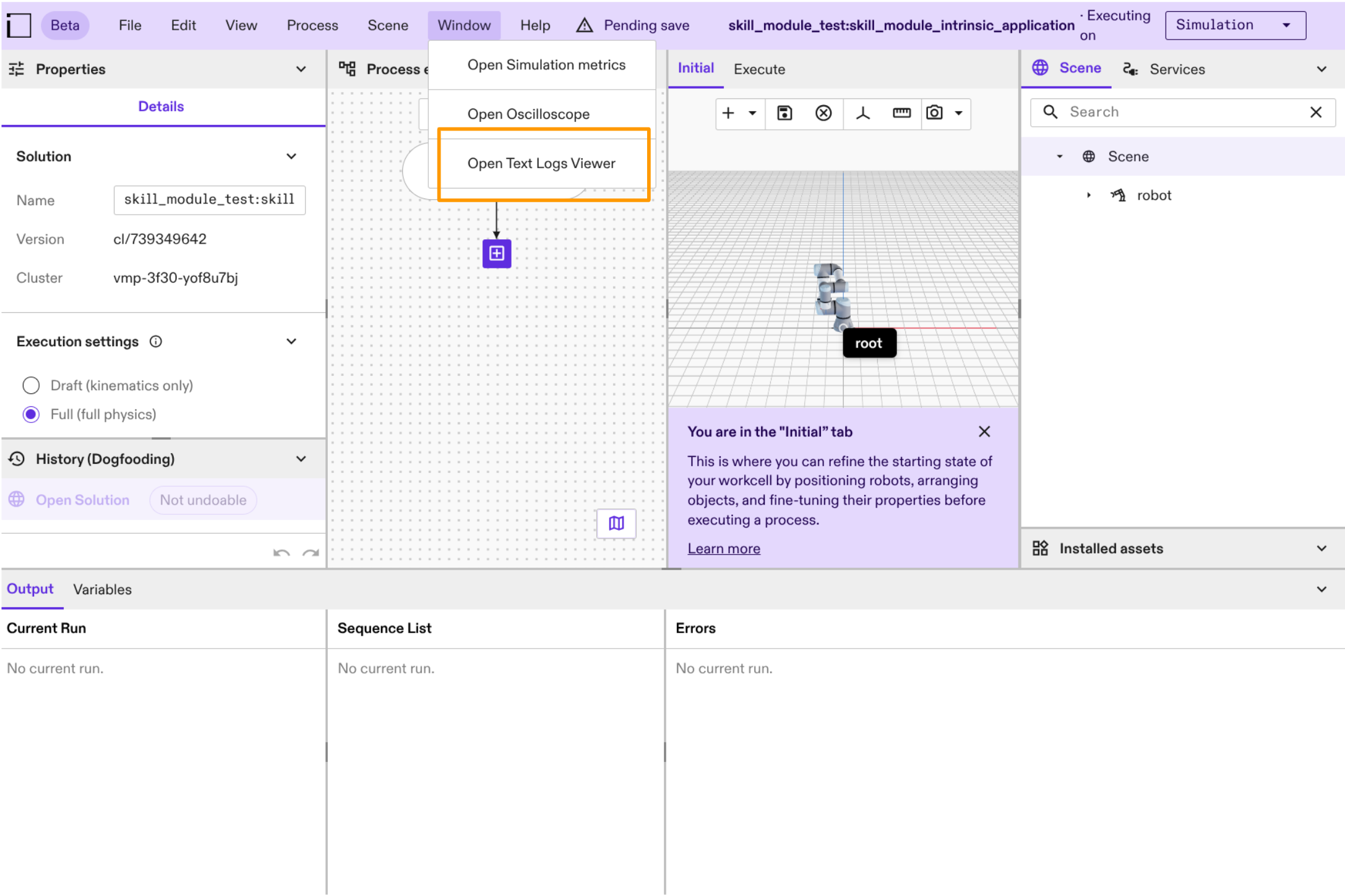
This viewer is directly accessible by clicking on the Open Text Logs Viewer option in Window menu. This will open a new page displaying the text logging UI, as illustrated in the image below.
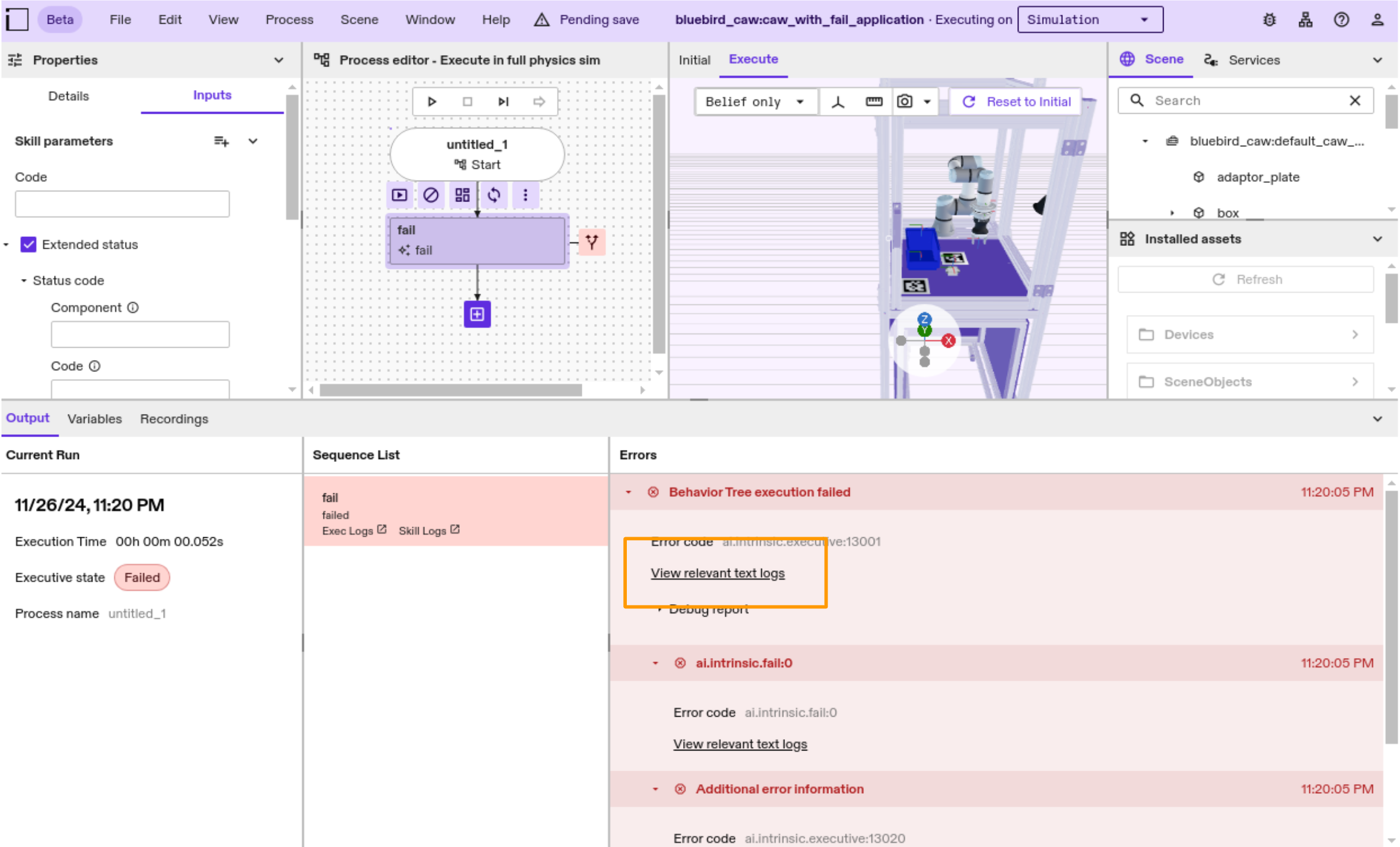
The text logs viewer can also be accessed through a link in the ExtendedStatus message. As an example, a developed skill fails with an ExtendedStatus message containing a link to the text logs viewer.
Elements
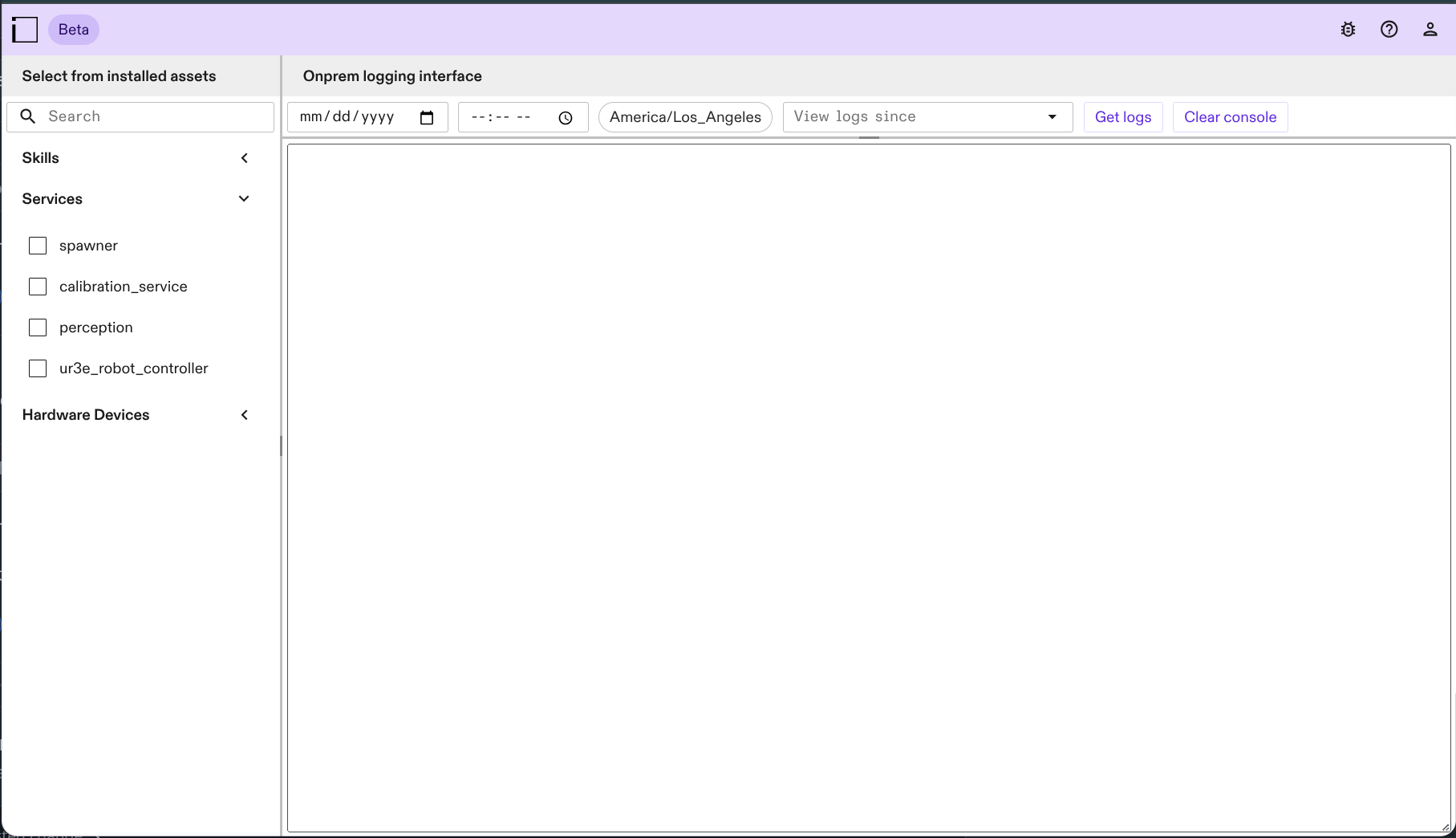
The viewer mainly comprises of:
- Side panel to select installed assets
- Array of components accepting various inputs for filtering logs
- Action buttons to perform various operations
- Text area to view logs
Asset Selection
From the asset selection side panel, select assets that you're interested to view logs of. The menu is grouped by asset types - skills, services and hardware devices. Select multiple assets by checking the box next to each item; uncheck a box to remove it from your selection..
Using the search bar on the top of the panel allows filtering through the list of installed assets.
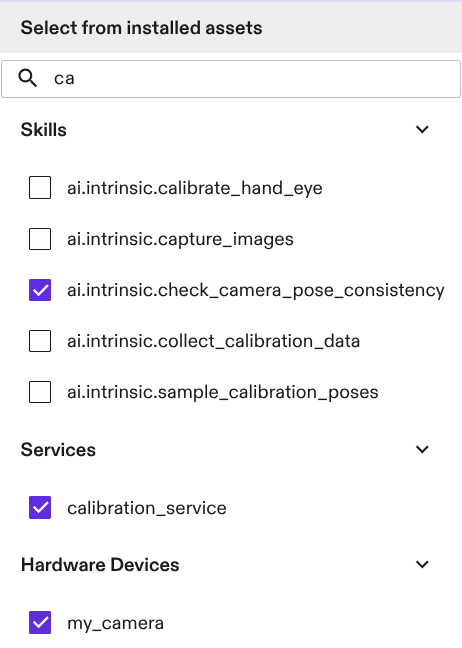
This feature is limited to installed assets of types - skills, services and hardware devices.
Filters
To view logs from a specific time, enter a timestamp in the date and time input field. Your local timezone is automatically set and displayed next to the input field.

If you're unsure of the exact timestamp, use the Last X time dropdown to view logs since a desired duration.
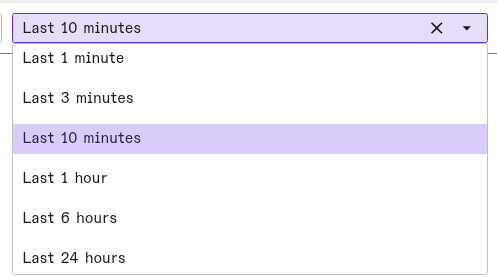
Please choose either a timestamp or a duration dropdown option. You cannot select both.
Actions
Once the filters are set through input elements, click on Get logs to view logs in the text area. After clicking Get logs, the viewer shows log entries in a consistent chronological order.
To start over, click on Clear console to reset all filters and clear the text area.
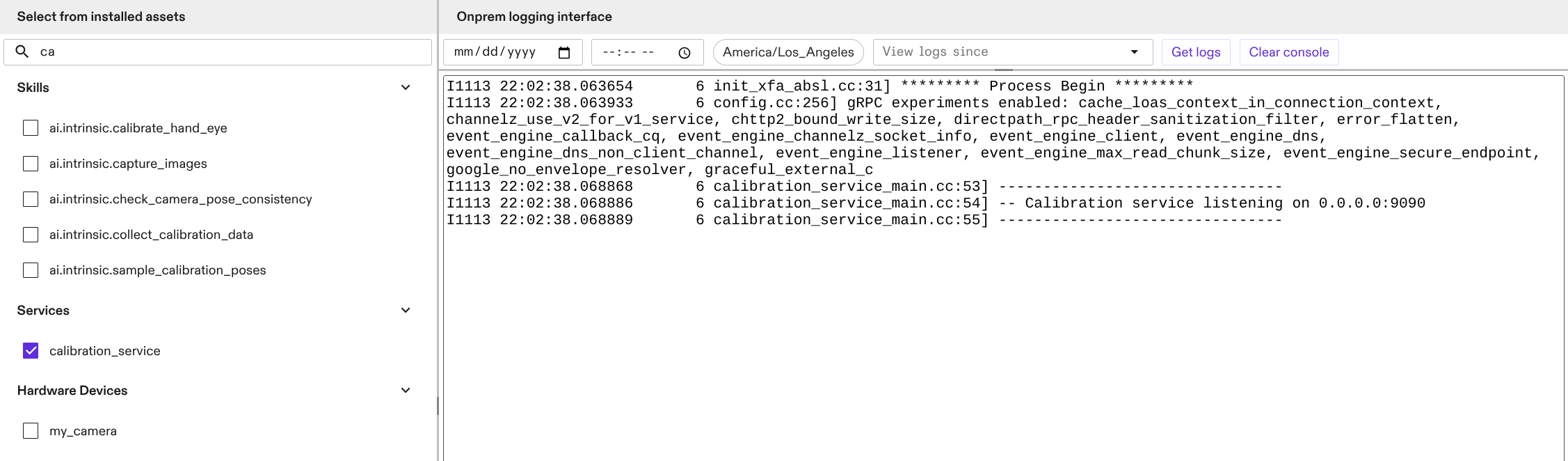
The accessed logs are always be displayed in Coordinated Universal Time (UTC).
Common issues
-
No assets availablemessage in the skill selection dropdownConfirm a solution is running and that at least one asset (skill, service, or hardware device) is installed or appears in the process tree.
-
Select either a start date-time or since option error while inputting time options
You cannot select both a timestamp and a duration dropdown option. Clear either start date-time by pressing the
backspacekey or the since option by clickingX