Use the local network
Normally, it's most straightforward to access the Solution Editor starting from https://flowstate.intrinsic.ai. However, when the internet connection is unreliable, or when developing an HMI, you can also use the local network.
Prerequisites
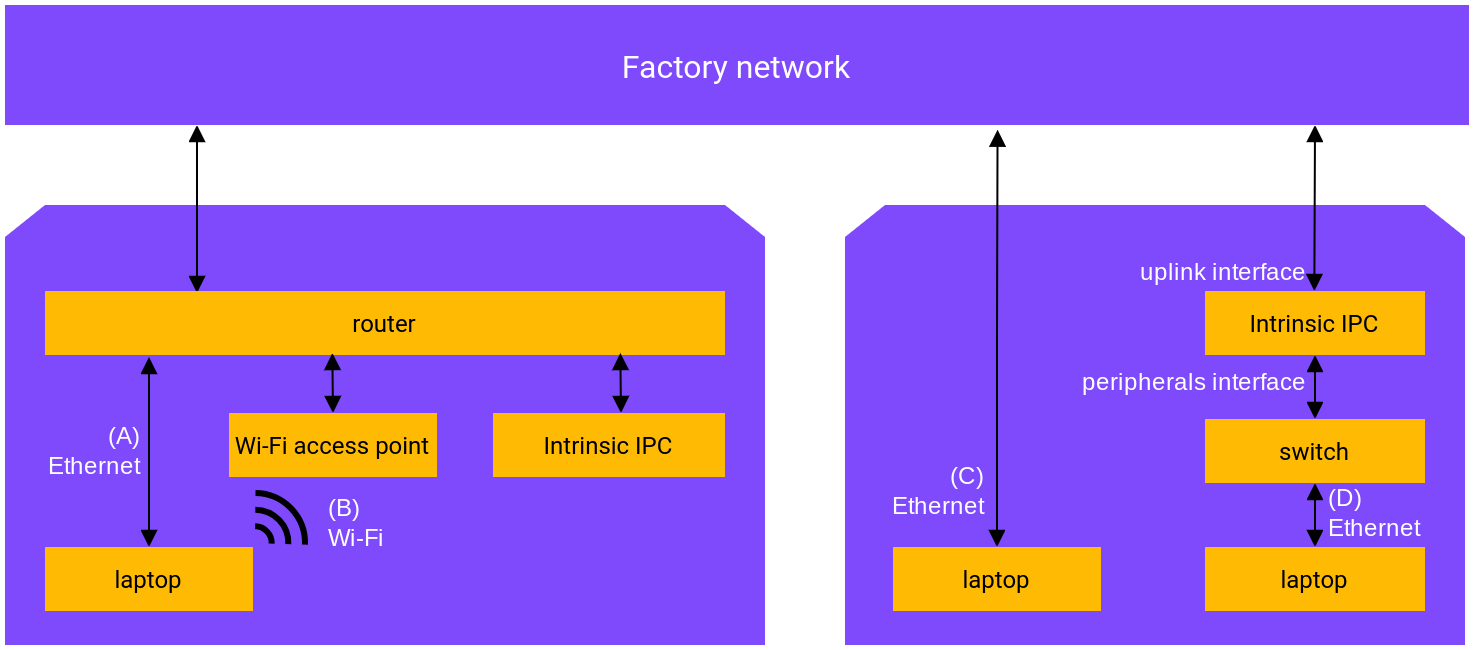
Choose how your computer (for example, your laptop or a tablet PC) will connect to the IPC's local network:
- if you have a workcell router, use (A) or (B):
- (A) Ethernet to the workcell router
- (B) Wi-Fi
- if the IPC is connected directly to the factory or lab network, use (C) or (D):
- (C) Ethernet to the factory network
- (D) Ethernet to the peripheral switch
The four different options are shown in this diagram:
Once you've selected an option, obtain and connect the necessary hardware (for example, a USB-Ethernet adapter for your laptop or a Wi-Fi access point for the router).
Instructions
Once the hardware is set up, you need to connect locally.
-
Find out the IP address of your IPC using one of the following options:
-
If you have a monitor: Connect it to the IPC and reboot. Depending on the hardware configuration, you need to connect to either the mainboard display connector, typically on the left, or one of the GPU display connectors, usually on the right. Reboot after changing the connector because hotplugging may not work.
After connecting the monitor, you'll see the local IP address on the display, for example:
Online
IPs:
  192.170.10.123/24
  192.168.1.15/24
In this example, the IP is
192.168.1.15. Ignore192.170.10.123, it's only for realtime networking. -
If no monitor is available: You can find out the IP over the Kubernetes Dashboard:
- Go to https://flowstate.intrinsic.ai, then select IPCs in the side panel.
- Find your IPC, select the overflow menu (⋮), then select Open dashboard.
- In the dashboard, search for app-ingress-proxy at the top, and click the pod app-ingress-proxy-......-....
- Find the IP under Resource information > IP.
-
-
Make sure your laptop has an IP on the same subnet. For example, if the IPC has the IP
192.168.1.16, your laptop should have an IP that starts with192.168.1.(e.g.192.168.1.105).To test that you are on the right subnet, you can run
pingon your laptop by opening the console or terminal and enteringpingfollowed by the IPC IP from the previous step.-
If you are using options (A) or (B), check that you are properly connected to the router or Wi-Fi by looking for link lights on both ends of the cables and checking the Wi-Fi settings on your laptop, as applicable.
-
If you are using option (C), Ethernet to the factory network, you might need to ask the administrator of the factory network for help connecting your laptop.
-
If you are using option (D), Ethernet to the peripheral switch, you'll need to configure a static IP on your laptop's interface. Look for instructions online or ask your IT department for support, as the instructions depend on the OS and configuration used on your laptop.
-
-
Choose how to address your IPC.
There are multiple ways to address your IPC over the local network. Using mDNS (
intrinsic.local) is the easiest option for most users.Option A: Use mDNS (
intrinsic.local)This is the easiest option as it does not require editing your hosts file. You'll need an IPC running IntrinsicOS 20251009.RC02 or later.
To test if your laptop can resolve
intrinsic.local, open the terminal and run:ping intrinsic.localIf you see
Reply from [...], continue to the next step. Otherwise, try Option B.Option B: Use Static Name (
workcell.lan)If mDNS fails, or if you prefer a static name, you can use
workcell.lan. Note that some older setups usedxfa.lanin the same way.To set up the static name:
- Local DNS: If using a workcell router, add a local DNS record for
workcell.lan. Try searching the documentation of your router for "local DNS record", "local resolution of hostnames" or similar terms. - Hosts file: Edit your laptop's hosts file to map the IPC's IP address (from Step 1) to
workcell.lan.
noteIf you just want to access an HMI, setting up a hostname is encouraged but not required. You can also follow Create an HMI service and replace
workcell.lanwith the IP address from the first step. - Local DNS: If using a workcell router, add a local DNS record for
-
Make sure your browser can access http://intrinsic.local:17080/frontend/ (or http://workcell.lan:17080/frontend/).
If you see an error like
Network Error (dns_unresolved_hostname) - Your requested host "intrinsic.local" could not be resolved by DNS, your traffic might be intercepted by a proxy. Try:- Temporarily disable any proxies or VPNs enabled by your IT department.
- Or, ask your IT department to exempt
*.localand*.lanfrom the proxy. - Or, add to the Exceptions list at Windows Settings > Network & Internet settings > Proxy (if using Windows, instructions depend on your operating system).
If you're able to access the Solution Editor at http://intrinsic.local:17080/frontend/ (or http://workcell.lan:17080/frontend/), you should also be able to access your HMI at http://intrinsic.local:17080/ext/services/hmi/ (or http://workcell.lan:17080/ext/services/hmi/).