Recover a Process Run
The recovery feature allows you to recover from failed process runs by restarting a process from any node. This is often combined with manipulating the blackboard values that represent the state to prepare for a restart from a certain valid state.
As an illustrating example, we create a simple inspection process that moves the robot to an inspection pose, performs an inspection, and then returns home. In practice, processes that require recovery are significantly more complex, where restarting from the start would be extremely costly.
The following example assumes a workcell that contains a robot with a wrist camera to detect objects. It is further assumed that the object to detect is already present where the camera can see it and pose estimators for the estimate_pose skill have been trained successfully. You can check the tutorials section to learn more about how to set up such a workcell.
Specifically this guide will work by starting a solution from the pick_and_place_module2 template.
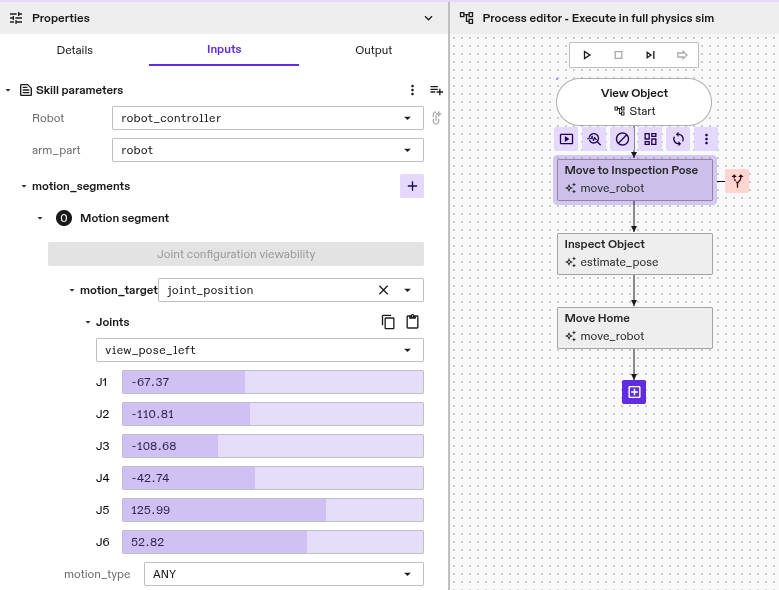
First, let us create the process with three skills. Set up move_robot to move to the inspection pose.
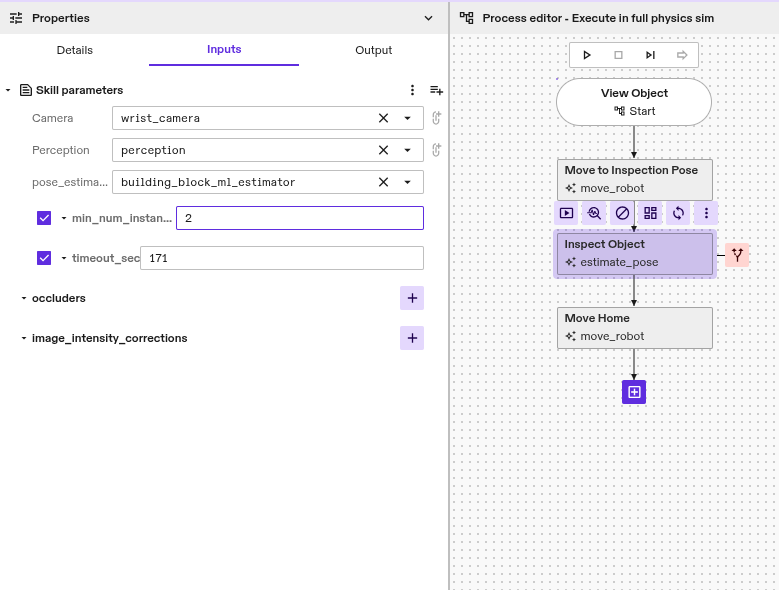
As an inspection skill, we just use estimate_pose. Configure it to require finding 2 object instances.
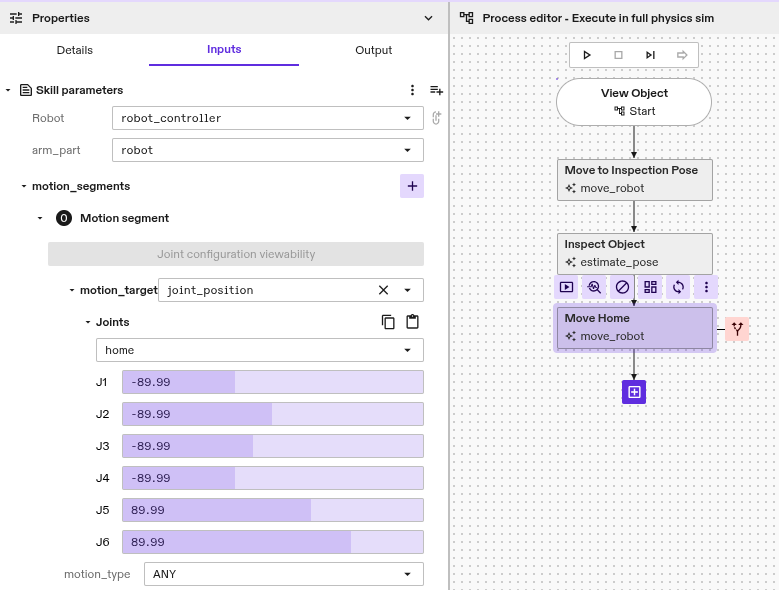
Finally, move home.
Now execute the process by clicking the play symbol in the execution toolbar.
Identify Recovery Procedure
Observe that the process fails as there was only one object found.
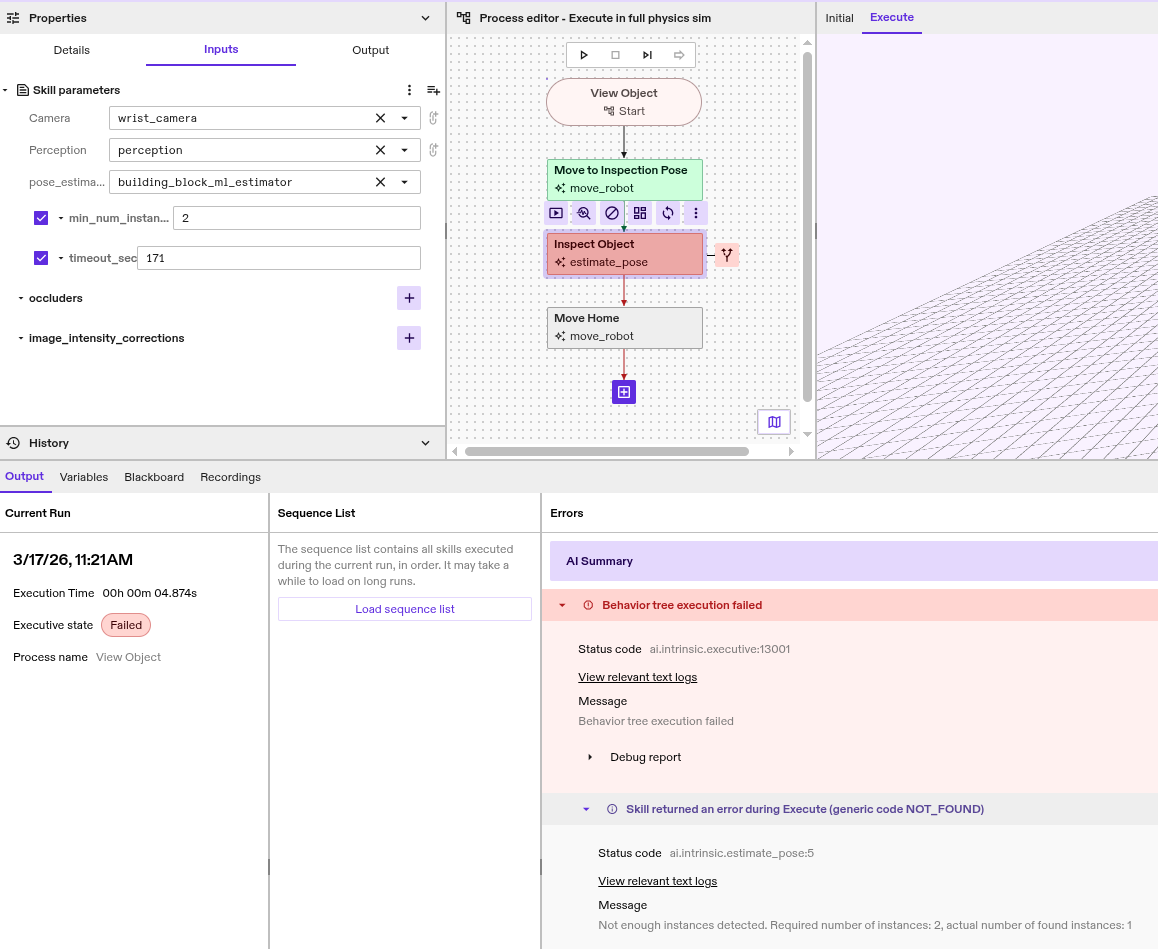
Depending on the observed error, you need to identify how a recovery for your application might work. In practice, this might mean asking the operator to place a second object. In our case, we will modify the process to look for one object only.
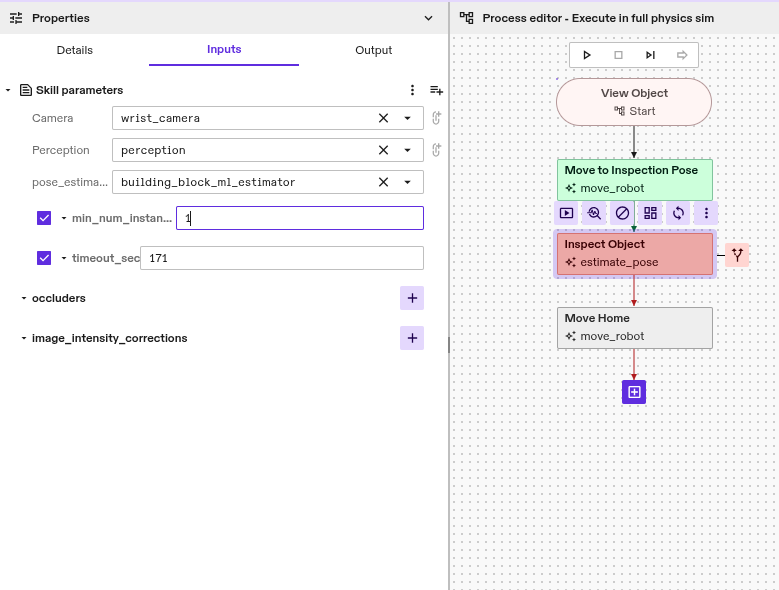
Execute Recovery
Now press the Recover button.
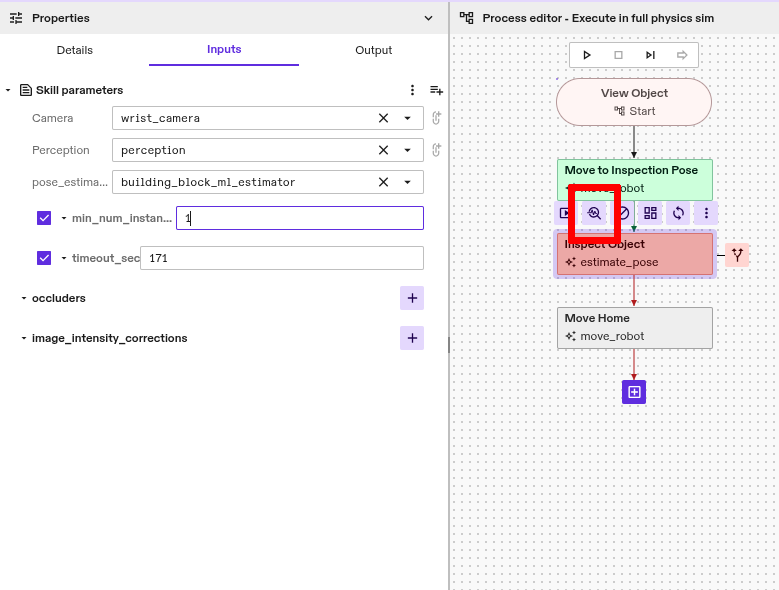
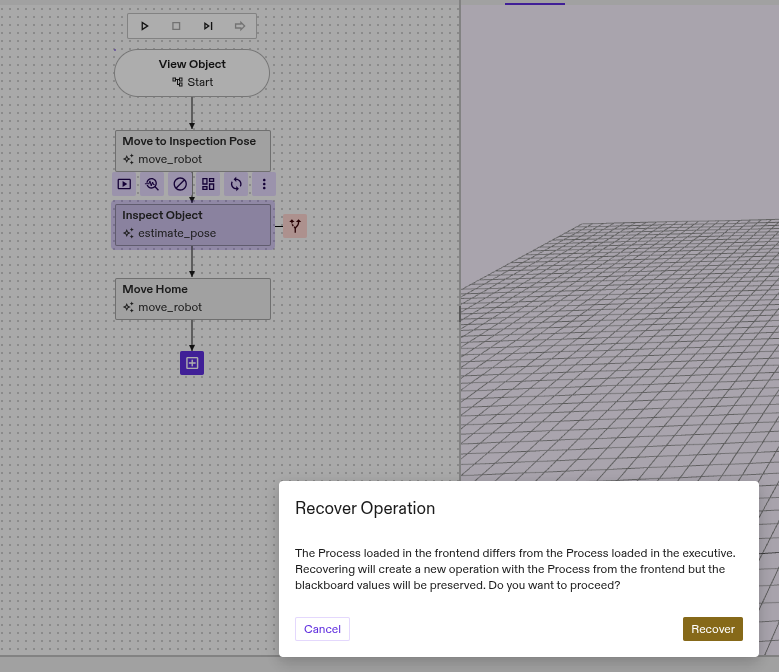
You will get a dialog stating that this will start a different process. This is OK, the changes we just made to the process mark it as different from the original one. Press Recover.
The process now succeeds as expected.
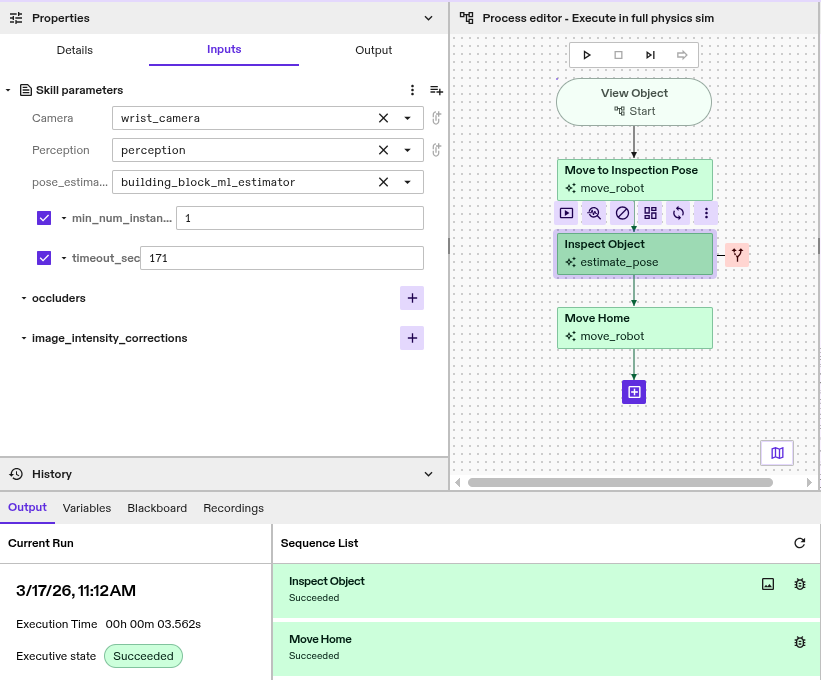
Observe that while the process ran to its end, the sequence list shows that only the previously failed Inspect Object and the Move Home skills were executed.
Recovery with retained blackboard values
For this example, we consider a process that performs multiple inspection steps. For that, we wrap the process steps from the previous example in a loop. We set its loop counter as an output variable named loop_counter.
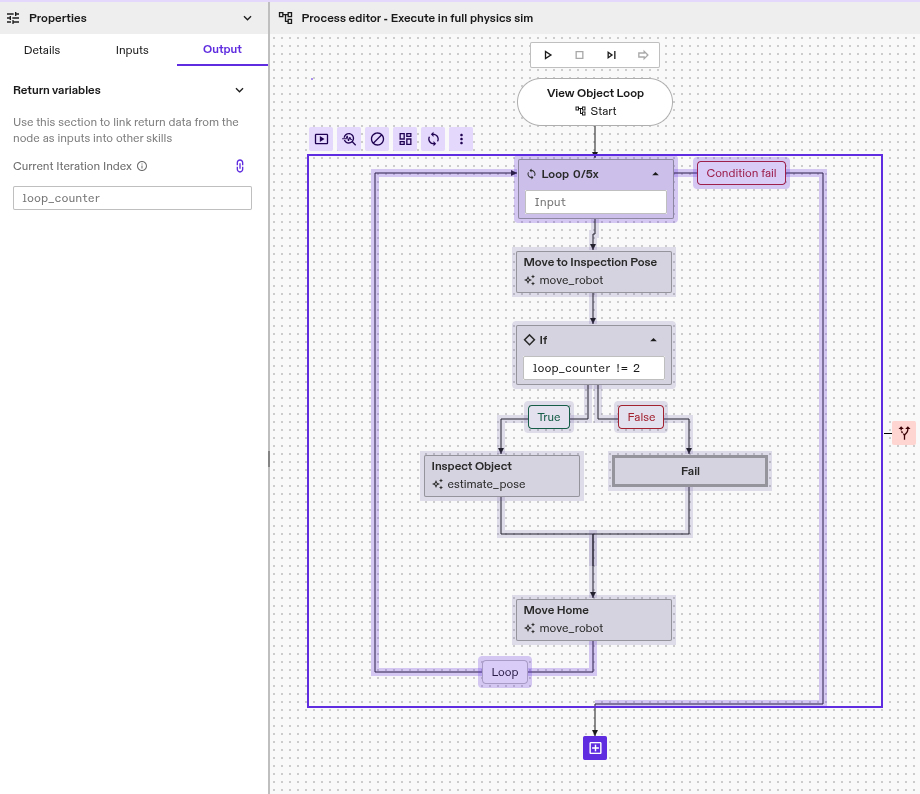
We want to investigate the case where a process fails in some loop iteration. For this example, we artificially introduce a failure in the third iteration (index 2). In practice, this would not be known beforehand.
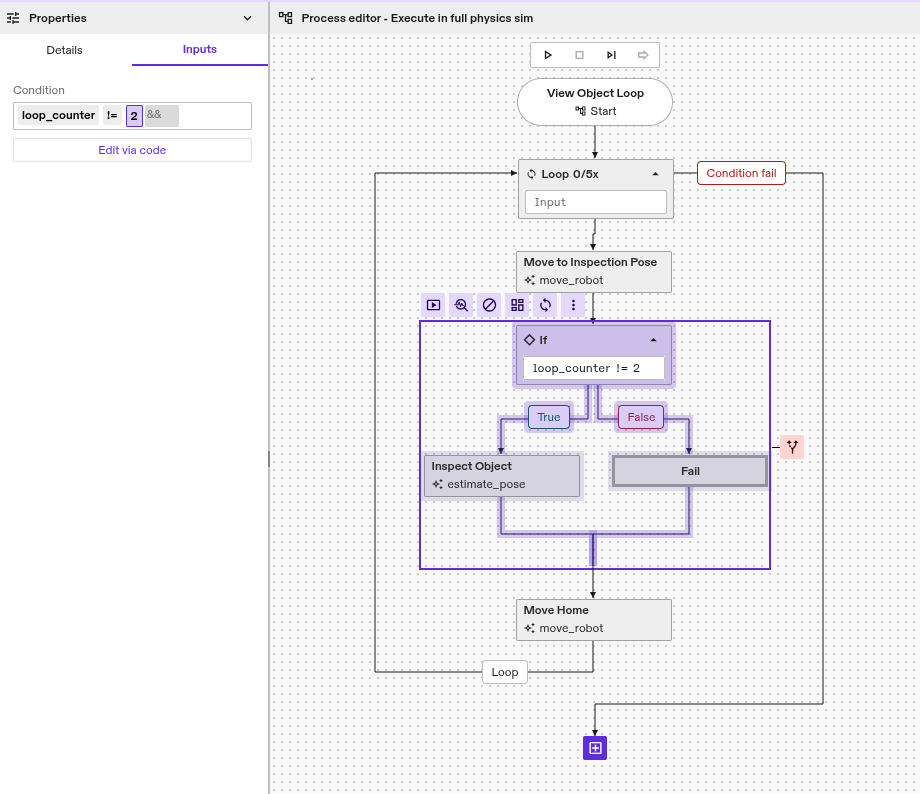
Now run the process with the Play button. It fails as expected in the third iteration.
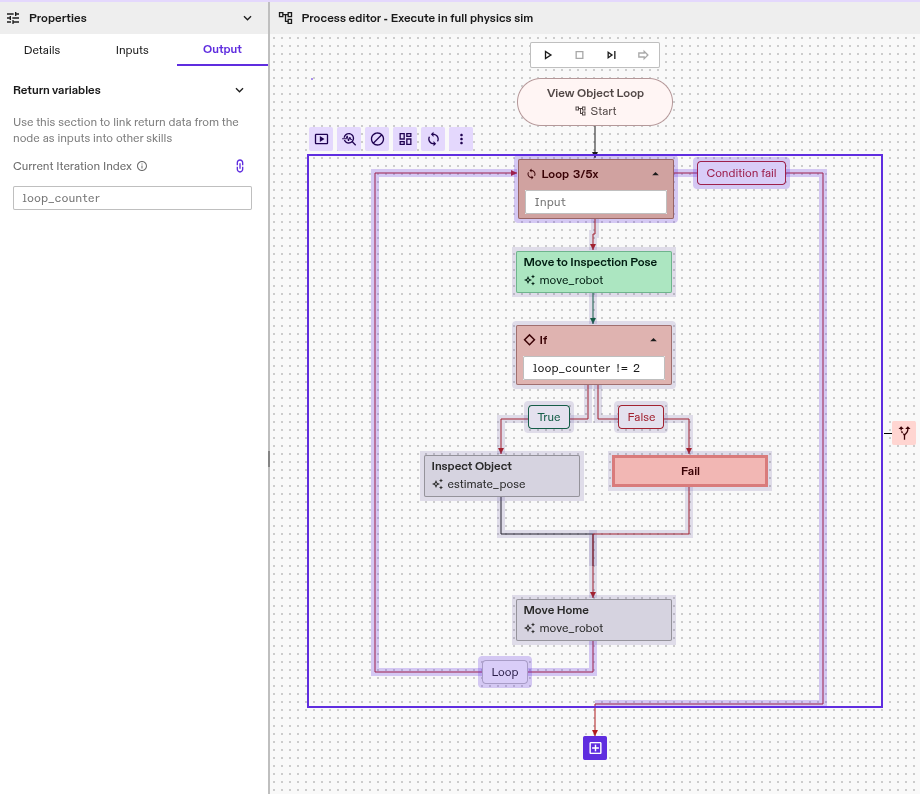
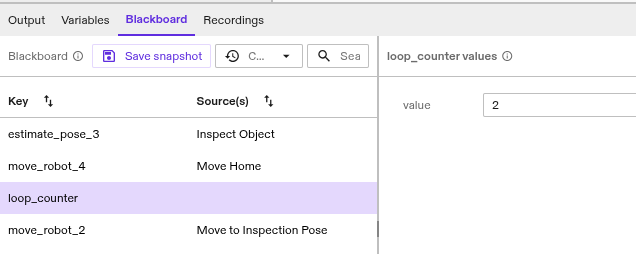
Use the blackboard panel to see that the loop counter is present on the blackboard. It currently has a value of 2.
We will now fix the issue by removing the failure condition.
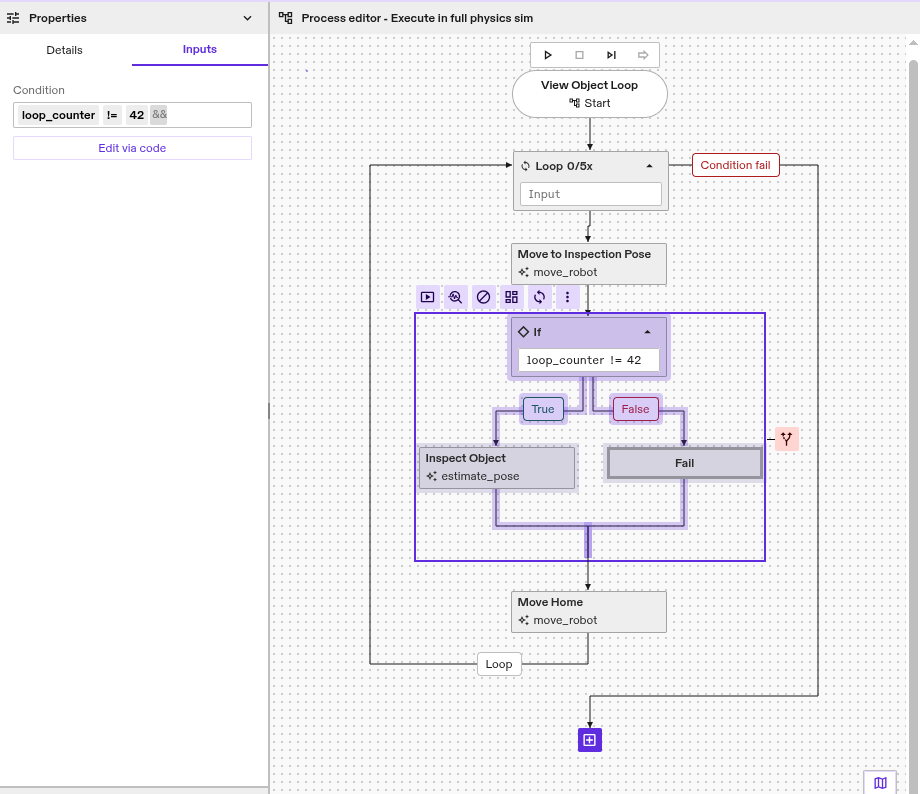
Now we can recover the failed process.
Note that there is no need to restart at the failed node (the Fail node).
In this case, we should start at the branch that actually caused the subsequent failure.
Another option would be to restart at the top of the loop.
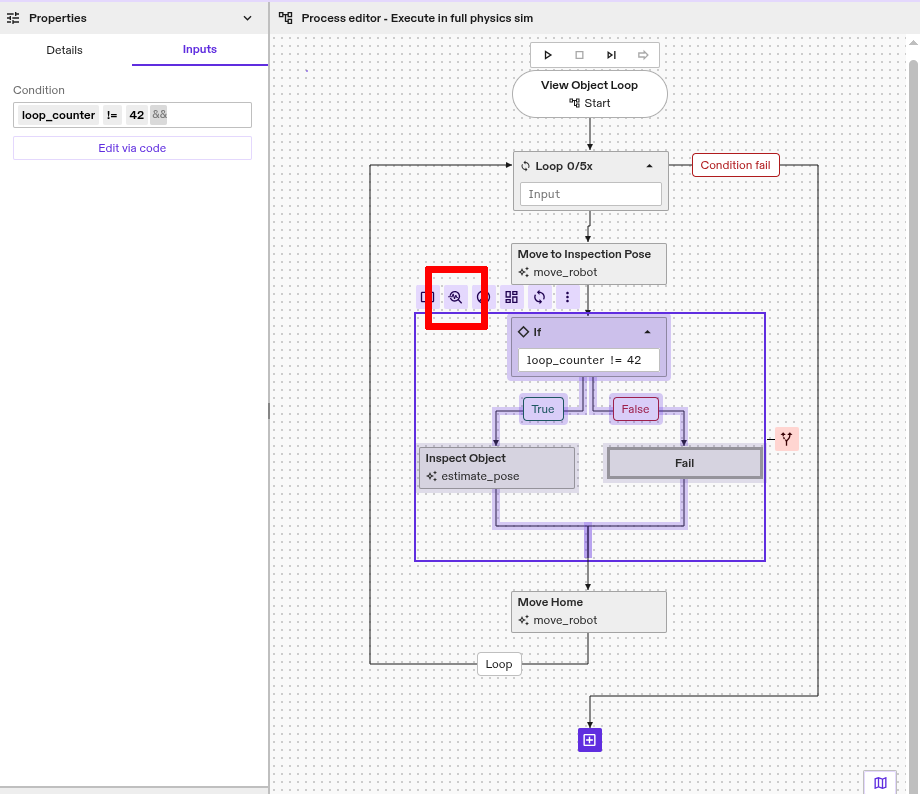
The process succeeds as expected. Note that after starting the recovery, the loop node is already in the third iteration. The blackboard from the previous run, including the loop counter, was restored when recovering.
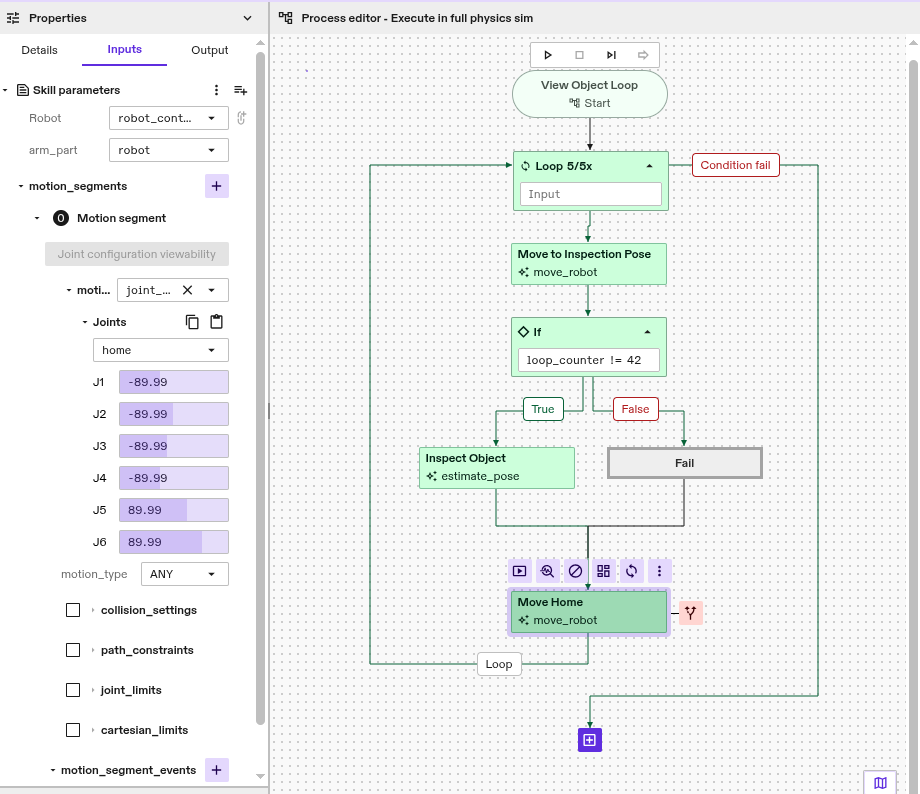
Loop counter values are special in that they set the affected loop counters on the process. In general, when recovering and restoring the blackboard, all its values (e.g., skill return values) are saved and restored.