CNC Machine Tending
Welcome to the CNC Machine Tending tutorial.
The Intrinsic platform and the Flowstate editor enable you to easily develop, deploy, and operate production-grade robotic solutions. While our developer guides provide you with documentation and examples on how to use individual features, this advanced tutorial provides a step-by-step guide to implementing a complete CNC machine tending solution using the Flowstate editor.
Objectives
This advanced tutorial provides a step-by-step guide to implementing a complete CNC machine tending solution using Flowstate.
Starting with a blank template, you will:
- Build the simulation environment: Add a robot, create a new scene, and onboard scene objects and equipment.
- Program the process: Utilize Flowstate's built-in skills and AI capabilities to orchestrate the workflow.
- Connect an HMI to interface with your solution.
Throughout this tutorial, you will gain experience with:
- Digital twin creation: Add, position, and configure all the elements of a simulated robotic workcell.
- Collision-free motion planning: Ensure safe and efficient robot movement.
- Skill development: Author a process using both first-party and custom skills.
- And much more...
By the end of this tutorial, you will be able to design and implement sophisticated robotic automation solutions in Flowstate.
Prerequisites
This tutorial requires experience with Flowstate to complete. We therefore recommend that you start by following the Pick-and-Place tutorial.
Modules
The Machine Tending tutorial is broken down into four modules:
- Module 1 - Design a workcell: The first step of creating a new solution is building the simulated workcell. You will explore several workflows, including importing static geometries from CAD, adding assets from Flowstate catalog and creating new scene objects and products. Finally, you will create new custom grippers and camera.
- Module 2 - Machine tending process authoring: In this module, you will learn how to author a new process to control your robot and various equipment. You will learn how to create and parameterize skills and sub-processes, and define data flows with variables.
Welcome and Flowstate setup
-
To start, navigate to https://flowstate.intrinsic.ai.
-
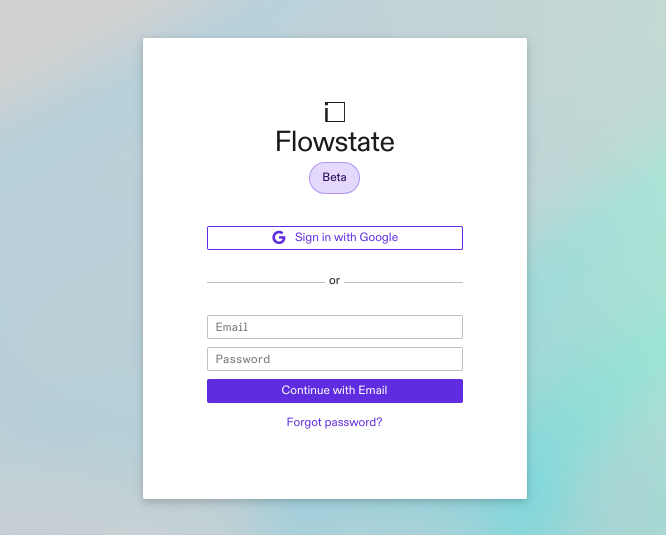
Sign in to Flowstate using single sign-on or your email address.
-
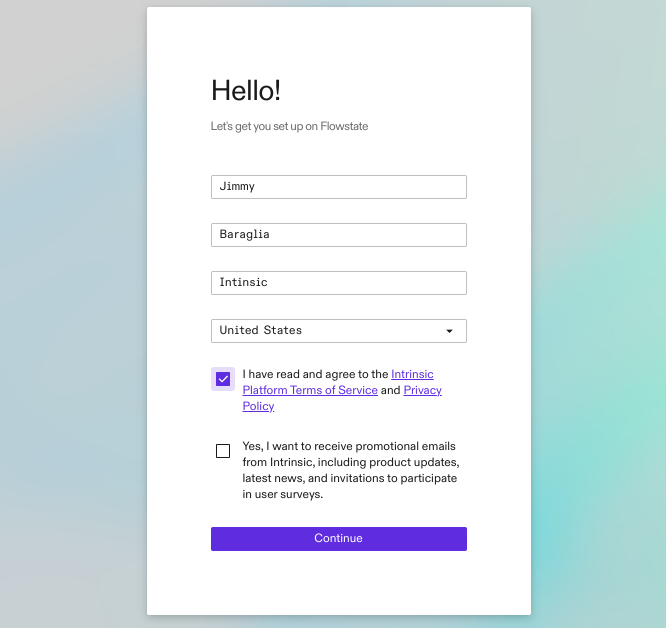
If you haven't yet registered, create a new account.
From the portal, you have access to a number of tutorials and documentation through our developer site.
-
Select the Home tab in the left sidebar.
-
Select the
intrinsic-prod-usproject in the bottom left corner. This is important to ensure that you are not working with an untested or in-development state of the platform.
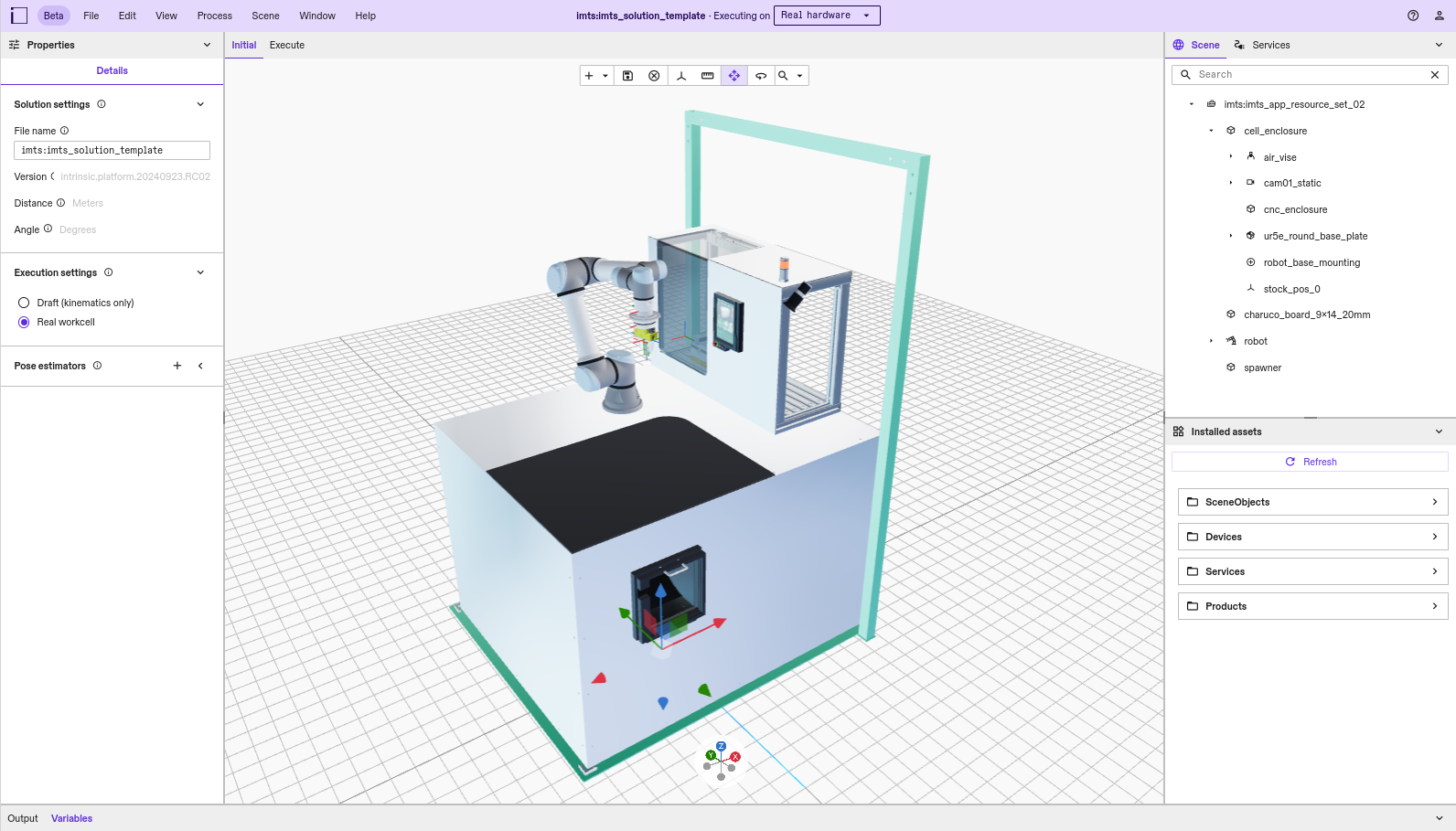
You can view a simple version of the completed solution as follows:
- Click Create new solution → From an example.
- Select
imts:imts_solution_templatefrom the example list. - After a few minutes, the Machine Tending solution will open.
Otherwise, proceed with the tutorial.
-
Create a new solution by clicking Create new solution → Blank solution.

-
You will see a Launching dialog.

After a few seconds, your new Flowstate solution will start. -
Once your solution is opened, you can modify its name on the left panel. For example, name it
[YOUR NAME] CNC tutorial.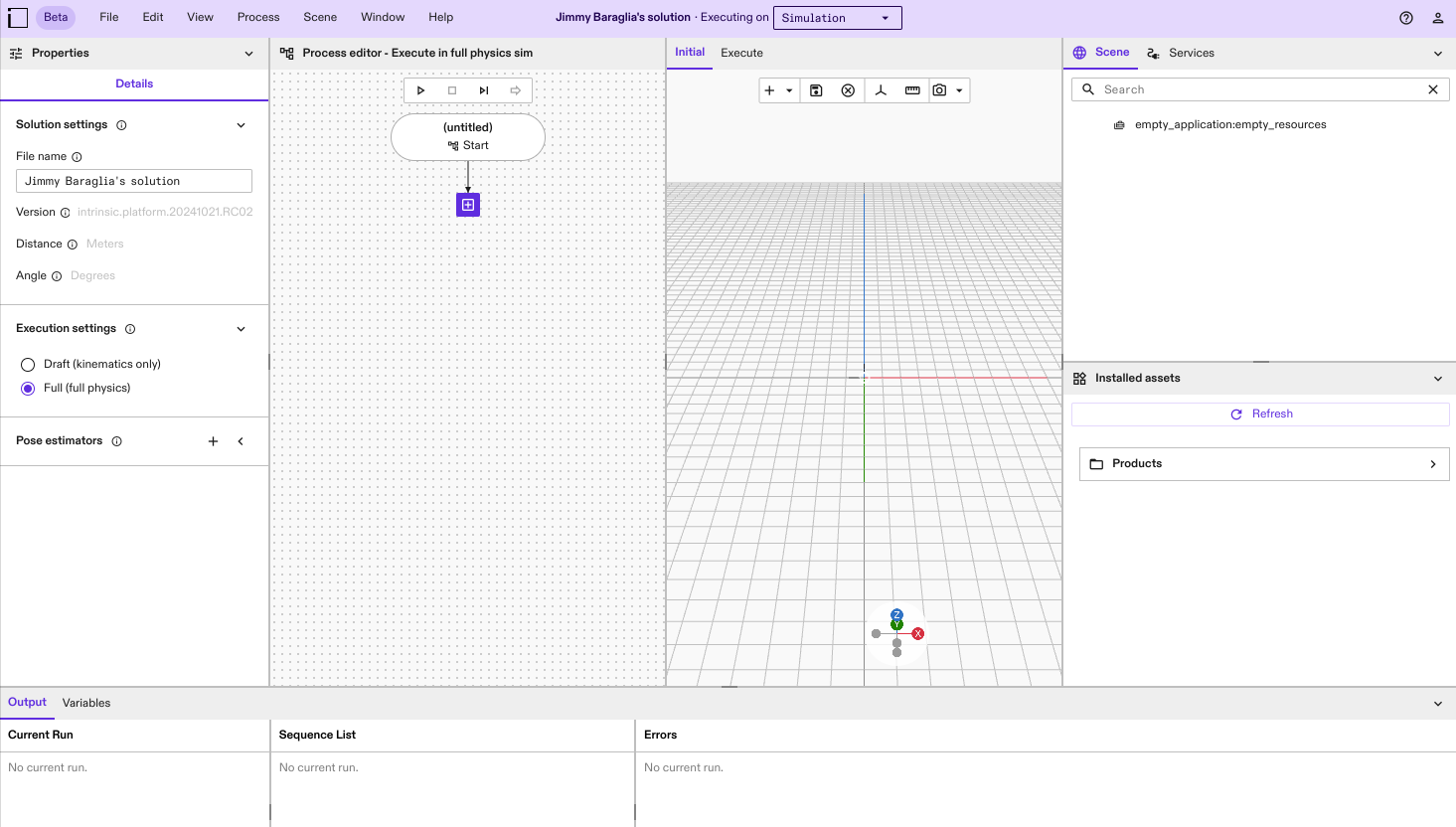
Notice that the solution editor consists of four main panels (from left to right):
- The Properties panel shows the properties of the selected object.
- The Process editor panel lets you create behavior trees.
- The 3D scene editor panel (with an Initial and Execute tab) lets you design the digital twin (3D model) of the workcell.
- The Scene and Services tabs in the right-most panel show a hierarchical representation of the scene tree and a list of running Services, respectively.
The visibility of any of these panels can be toggled in the View → Panels menu.
The bottom panel is divided into two tabs:
- Output provides information about the current process execution and error messages.
- Variables list the names and values of all the variables defined in your process.