Make a Process reusable
Processes are currently being migrated and unified as a type of Asset. This migration is incomplete. Documentation on this page primarily describes Process Assets rather than the old (legacy) style of Process. Differences between the new asset flows and legacy flows are pointed out where applicable.
Any Process created with Flowstate can be marked as a reusable Subprocess. Subprocesses can be used in other Processes just like skills.
Subprocesses typically define external input parameters that are used to pass Solution-specific information to the Process (similar to skill parameterization).
Hard-coding Solution-specific details (like a certain gripper or frame) in the Process without external input parameters will inhibit reusability.
You can add a Process with external input parameters to another Process, parameterizing it just like you would with a skill.
It is also possible to execute a Process with external input parameters directly, but only if values for the input parameters are given in the Process input parameter panel. The Run action in the Process toolbar is disabled if values are missing.
Make a Process reusable
This section only applies to Process Assets. Read the corresponding section on legacy Processes below.
First, follow the steps to to create a new Process or to load an existing Process. You can then mark the Process that is loaded into the Process Editor as a reusable Subprocess.
Begin by selecting the start node of the Process with its display name in the Process Editor.
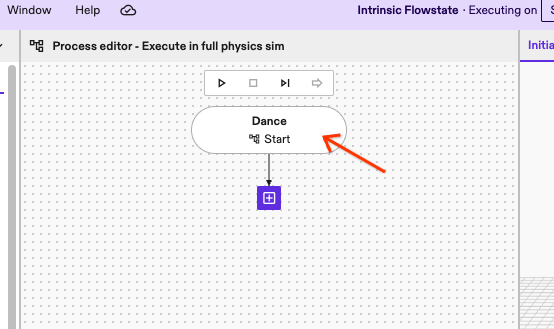
Now find the Subprocess checkbox in the Details tab of the Properties panel on the left of the Process Editor.
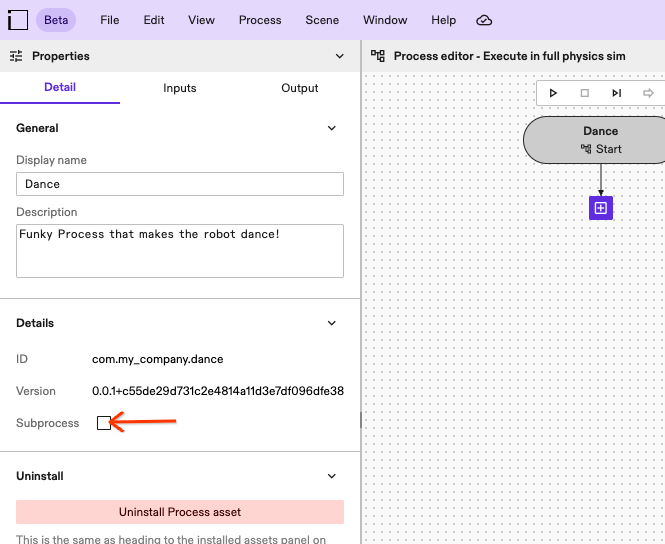
To make the Process a reusable Subprocess, check the corresponding checkbox. This setting will be saved automatically.
The version right above the Subprocess checkbox will change after (un-)checking it because this property is stored within the Process asset.
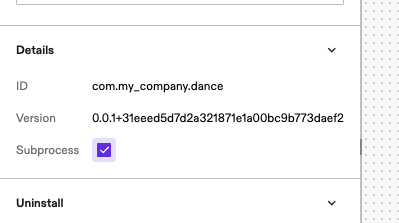
The Process will now show up in the list of skills in other Processes. See the guide for adding skills for details.
The contents of Subprocesses are inspectable by users that the Process asset is made available to. Making a Process a reusable Subprocess does not hide its contents to consumers.
Any further changes you make to the reusable Process will be propagated to all consumers automatically.
For legacy Processes, changes had to be explicitly propagated to consumers. This is no longer necessary with Process Assets. All changes are propagated to all consumers automatically.
You may uncheck the Subprocess checkbox at any time.
The Process will no longer appear in the list of skills in other Processes.
Processes that already reference/use the Process will continue working and receiving updates.
Make a legacy Process reusable
While editing any Process, you can select the start node and inspect its Detail tab. The Detail tab provides a button to Make the Process reusable. In case the Process was made reusable before and then changed, the button reads Update reusable Process. Once committed, the Process will appear as a new skill in the list of installed skills.
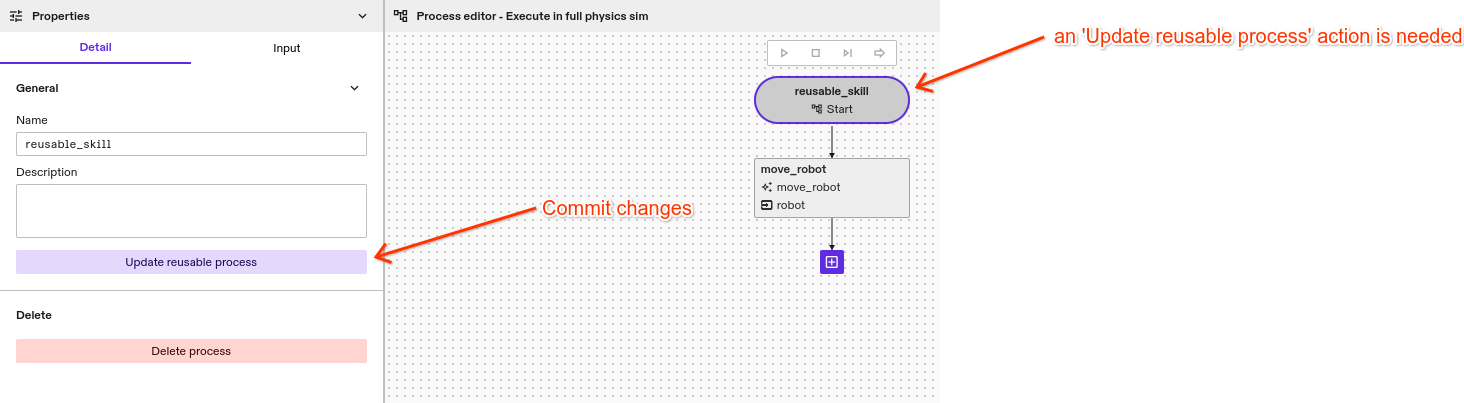
Any change made to the Process from now onwards outlines the tree with a purple border, identifying the tree as out-of-date with the version that was added to the list of installed skills. This requires you to Update reusable Process to update the version and propagate it to any other Process that uses your reusable Process.
This is only required for legacy Processes. Changes to Process Assets are propagated to consumers automatically.
Add an external input to your Process
A major advantage of reusability is the ability to make your Process look more concise and less cluttered.
Oftentimes, parts of the Process exhibit similar behaviors with subtle variations. By defining external inputs, you can improve the reusability of similar Processes.
For example, a Process for the task of placing an item at a location could define external inputs for a
placement target and a resource. This can be a specific gripper and parameters for placing the item at a location.
By doing so, you prepare for reusing this Process multiple times for different placement tasks.
To add external inputs to the reusable Process, select the start node, locate the Input tab and click the Add button to expose a new target as an external input.
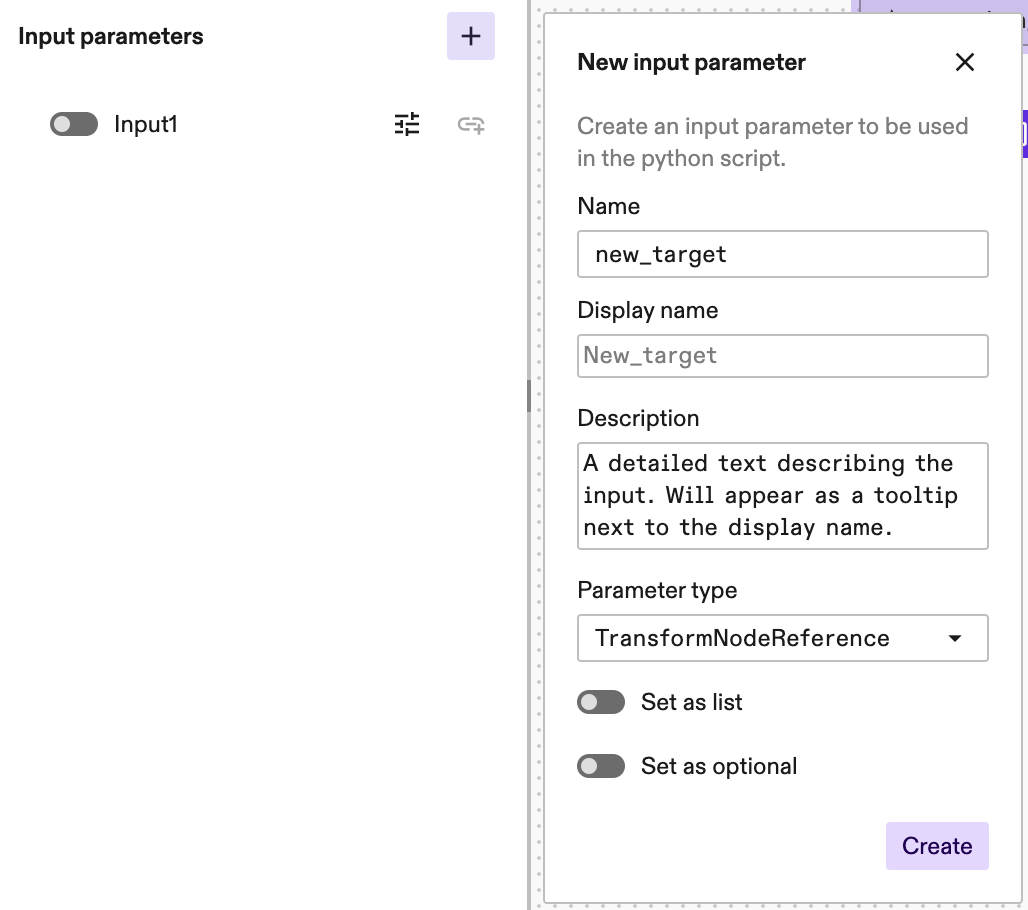
Adding a description to the external input adds a helpful tooltip next to the external input used by the consumer. Toggling the Set as optional switch makes this external input an optional variable. Optional external inputs can only be linked to other optional skill parameters.
In the reusable Process, you need to make sure that all skill parameters that should use this external input are linked to it.
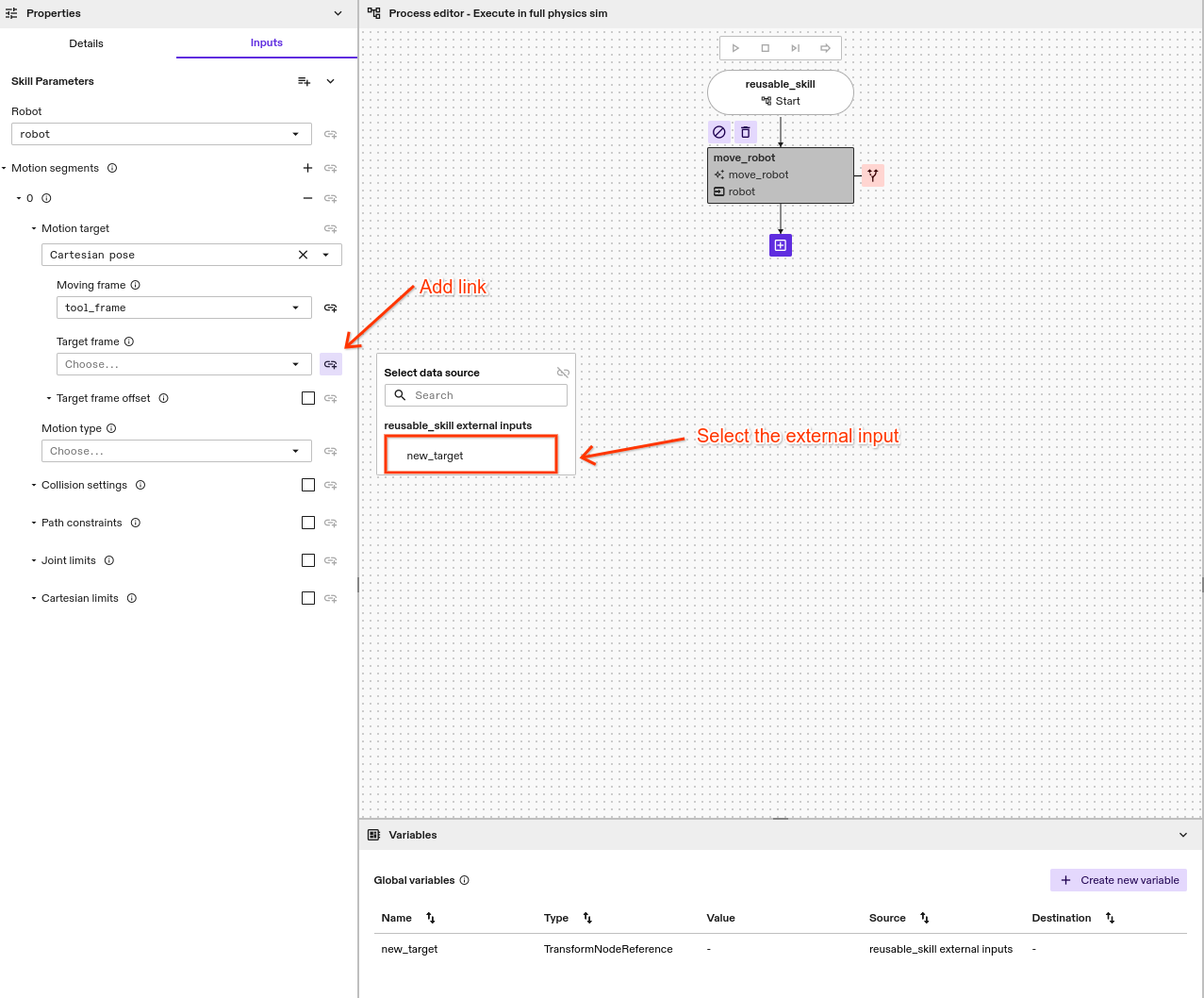
Remember to click Update reusable Process to apply your changes to the the installed version.
When using your reusable Process, you now have an input parameter that must be set or linked to the output of a skill in the top-level Process prior to execution. Failure to properly configure this parameter will trigger an error message upon reaching the corresponding skill within the reusable Process.
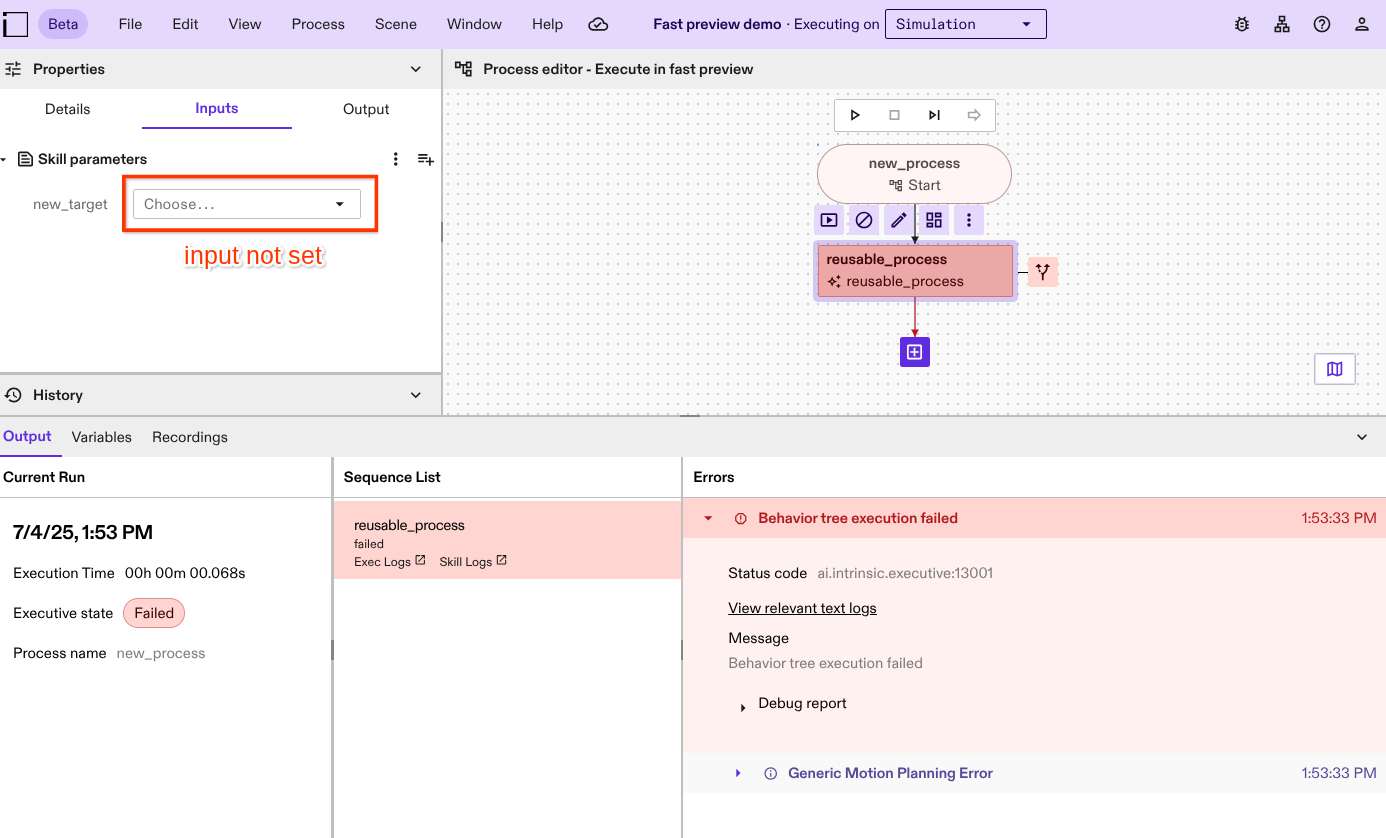
Debug a reusable Process with external inputs
Before integrating a reusable Process into a larger workflow, it's recommended to test it independently. To facilitate this, you can provide debug values for external inputs.
How to add the debug values:
- When adding a new external parameter to a reusable Process, you'll see fields (and potentially subfields) to specify values.
- Enter your desired debug values into these fields.
- These values will be automatically stored and used when you run the Process independently.
Once you've thoroughly tested the Process with debug values, you can confidently incorporate it into a larger Process. In this larger Process, you'll need to provide the actual values for the external parameters.
External inputs' available types
The list of available types comprises primitive types, common skill parameter types and required resources. The list of required resources is created from the resources used in the skills in the reusable Process that support these different resource types.
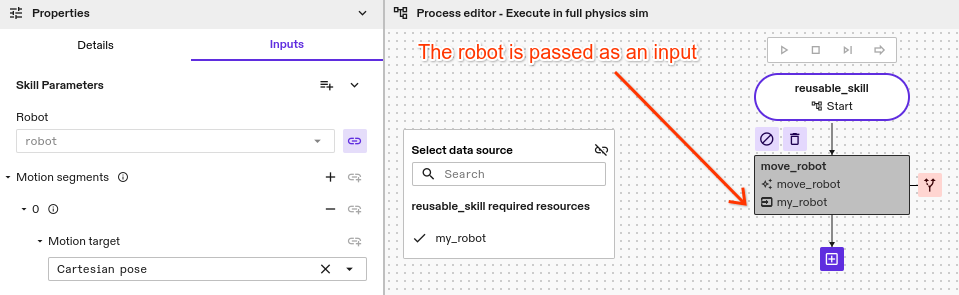
Just as for skill parameters, external inputs with a resource type are always listed at the top.
Add an output to your Process
Processes can have outputs to pass data to subsequent skills or reusable Processes. To add an external output to the reusable Process, first select the start node. Then, navigate to the Output tab and click the Add external output parameter button. To do this, follow the data flow linking instructions detailed in Manage data flow. You can connect external outputs to skill outputs inside a reusable Process.