Connect to an Organization
Now that you have prepared the Intrinsic development environment, the next step is to add your Organization and authenticate. Authenticating allows you to see available solutions, install skills into a solution, and view logs from your skills.
Add your Organization
-
Find your Organization name
- Your organization name can be found in the dropdown at the top of the sidebar of the Flowstate Home page.
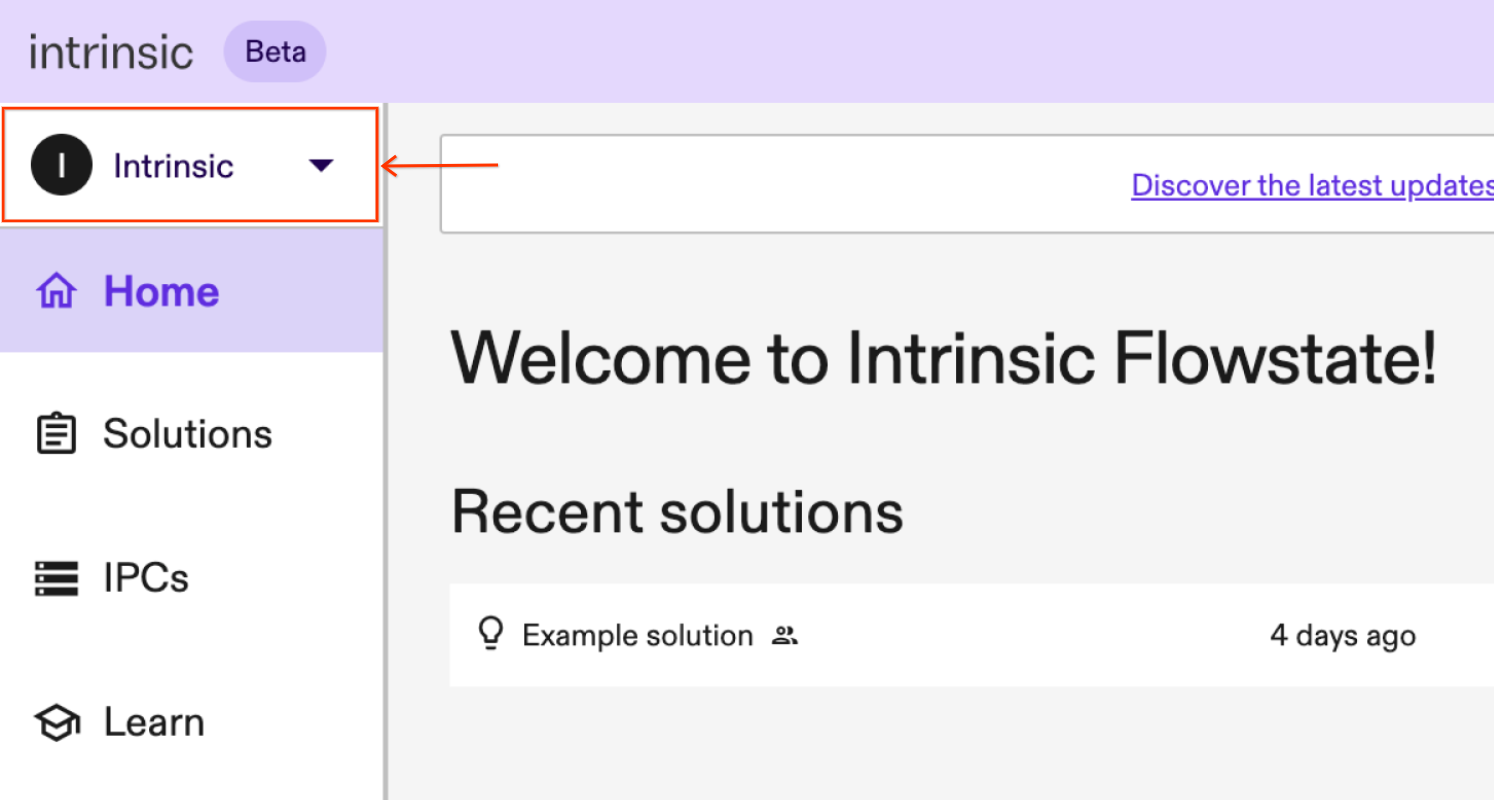
- The organization name should look like this:
Organization (project ID)
     ⬇️          ⬇️
Intrinsic (intrinsic-prod)noteIf your project ID isn't listed in the dropdown, check the URL of your Flowstate page. The ID is part of the web address
https://flowstate.intrinsic.ai/project/<project_id>/org/<organization> -
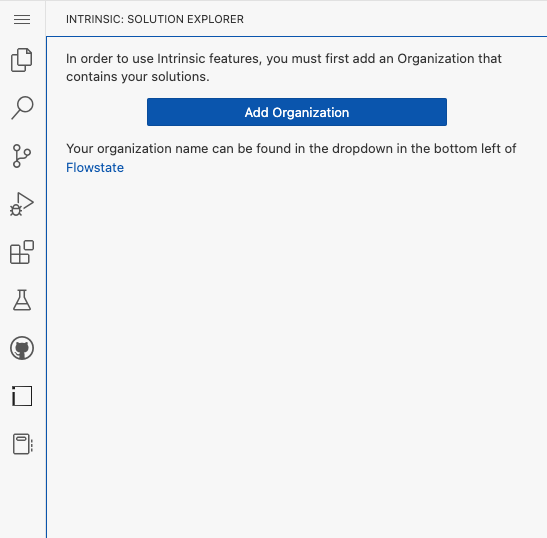
Open Intrinsic VS Code Extension
- Navigate to the left panel and click the Add Organization button:
-
Enter your Organization name
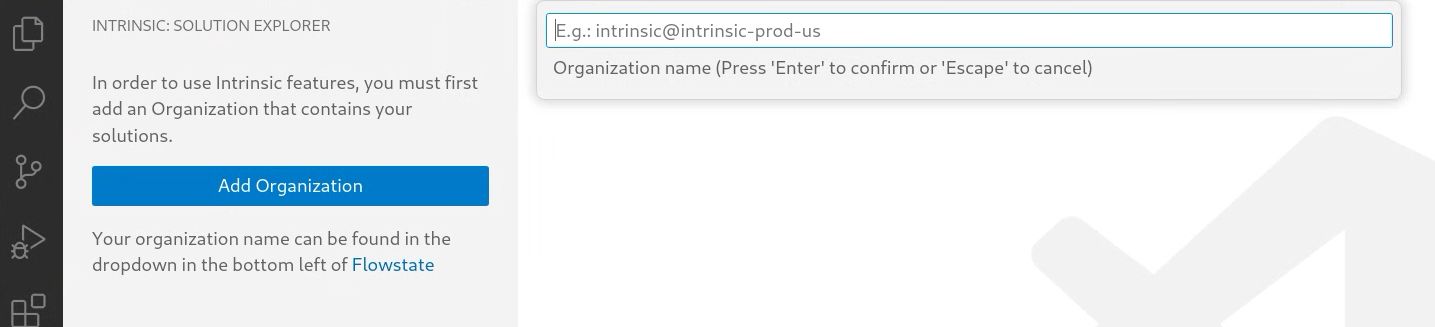
- In the text input field that appears, enter your organization name using the following format:
organization@project_id
noteWhen entering the organization name, ensure you use the lowercase version, as the field is case-sensitive. For example, enter intrinsic instead of Intrinsic.
- In the text input field that appears, enter your organization name using the following format:
Authenticate with your Organization
Authenticate with your Organization to enable working with solutions in it.
-
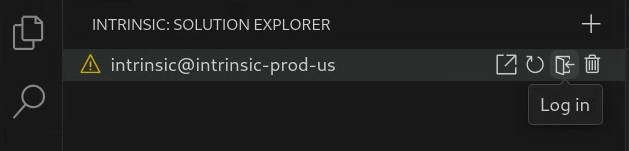
Click on the Log in button. This will open a new terminal in VS Code.
-
A new terminal will be opened in vscode.
-
The command will open a web browser to a page asking you to log into your Flowstate account. Log into your account.
-
The web page will generate a key for you. Copy the key text.
-
Paste the key text into the terminal in VS Code where it asks for an
access token.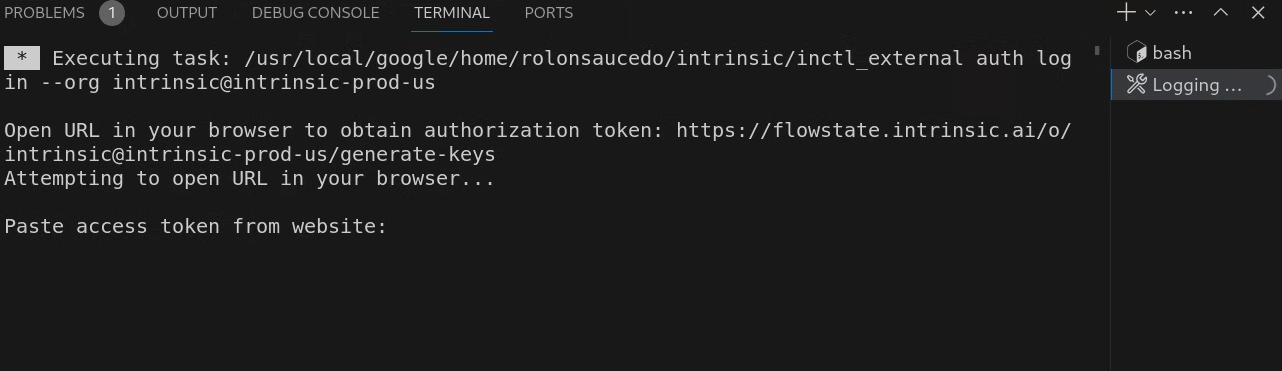
The Intrinsic VS Code extension will now display running solutions running in your cloud Organization.
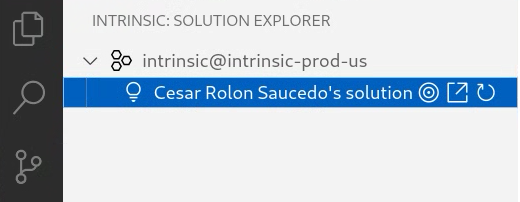
Select a target solution
Specify the solution you wish to use with the Intrinsic VS Code extension.
- Find your solution in the list under your Organization.
- Click the target icon next to your solution name.
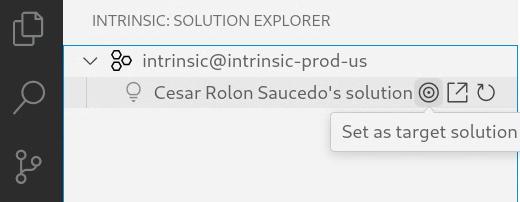
You have set a target solution. The status bar at the bottom of the VS Code window shows the name of your current target solution.
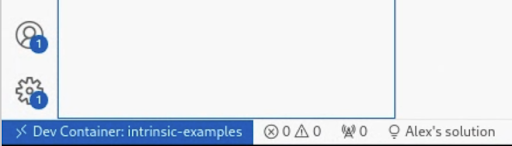
When you install your custom skills from VS Code they will always be installed into your target solution.
What's next
Now that you have set up your development environment and authenticated to an Intrinsic Organization, you may proceed with any of the following: