Install Assets from another Solution
When working in the Solution Editor, you can install an Asset directly from another Solution to which you have access. This option can be useful when, for example:
- the Asset was created in another Solution (e.g., a trained perception model Data Asset or a SceneObject that you imported from a file).
- you want to ensure that you use the exact version of an Asset from another reference Solution.
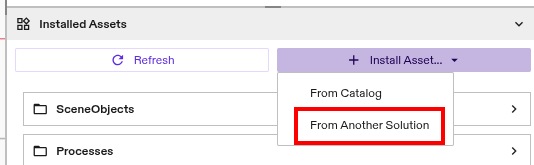
Installing an Asset from another Solution is very similar to installing one from the Asset Catalog. From the Installed Assets panel, you can select Install Asset... --> From Another Solution:
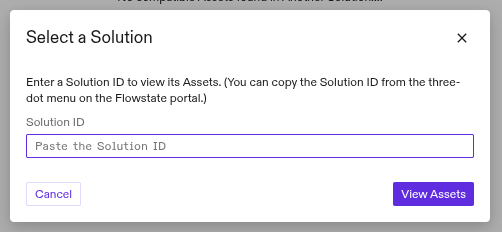
Enter the ID of the source Solution in the dialog box that appears:
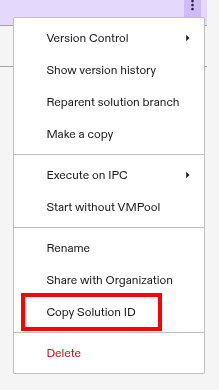
You can find your source Solution's ID in the Portal by opening the triple-dot context menu next to your Solution in the Solutions list and selecting Copy Solution ID:
Once you select your Solution, you can then choose from the list of available Assets in that Solution:
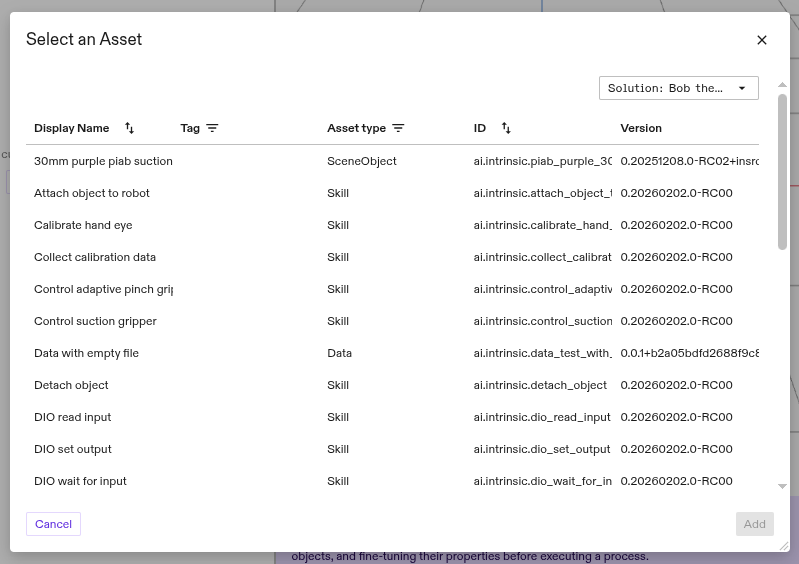
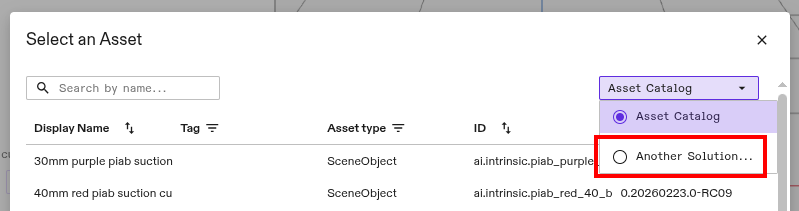
If you reach the Asset selection dialog box from a different workflow (e.g., when adding an object to your scene), you can still change the Asset source to your desired Solution: