Account settings
The Flowstate portal is a web-based application that provides a user-friendly interface for managing your solutions and account settings. It is designed to be intuitive and easy to navigate, allowing you to quickly access the features you need. After you sign in, you'll arrive at the Home page in the Flowstate portal.
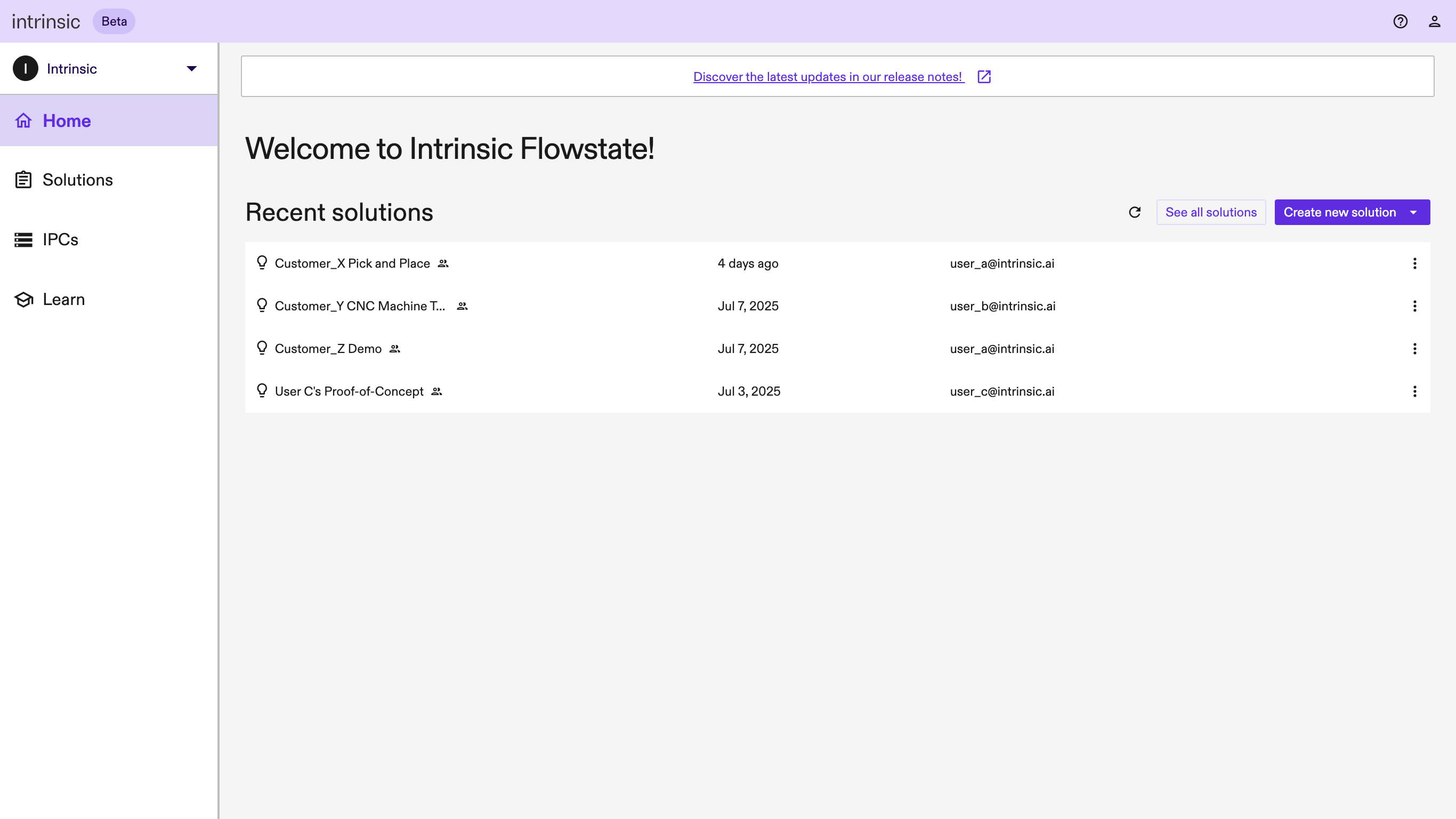
The left (navigation) panel contains links to the pages available in the Portal, with the page content displayed on the right:
- Home page: Currently shows the most-recently modified solutions available in your workspace, with buttons to create a new solution or see the full list of solutions. Until you create a solution or have a solution shared with you, the table will be empty. The Home page will evolve as we add more pages to the Portal.
- Solutions page: Shows the full list of solutions available in your workspace. Until you create a solution or have a solution shared with you, the table will be empty. IPC page: Allows you to add, view, and manage your industrial PCs (IPCs). You’ll need an IPC to deploy a solution to real hardware.
- Learn page: Offers quick links to our tutorials, documentation, and Get Help section in the developer documentation site.
Change user account settings
To edit your user account settings: Click the person icon (Accounts) in the upper right corner, and select Account settings.
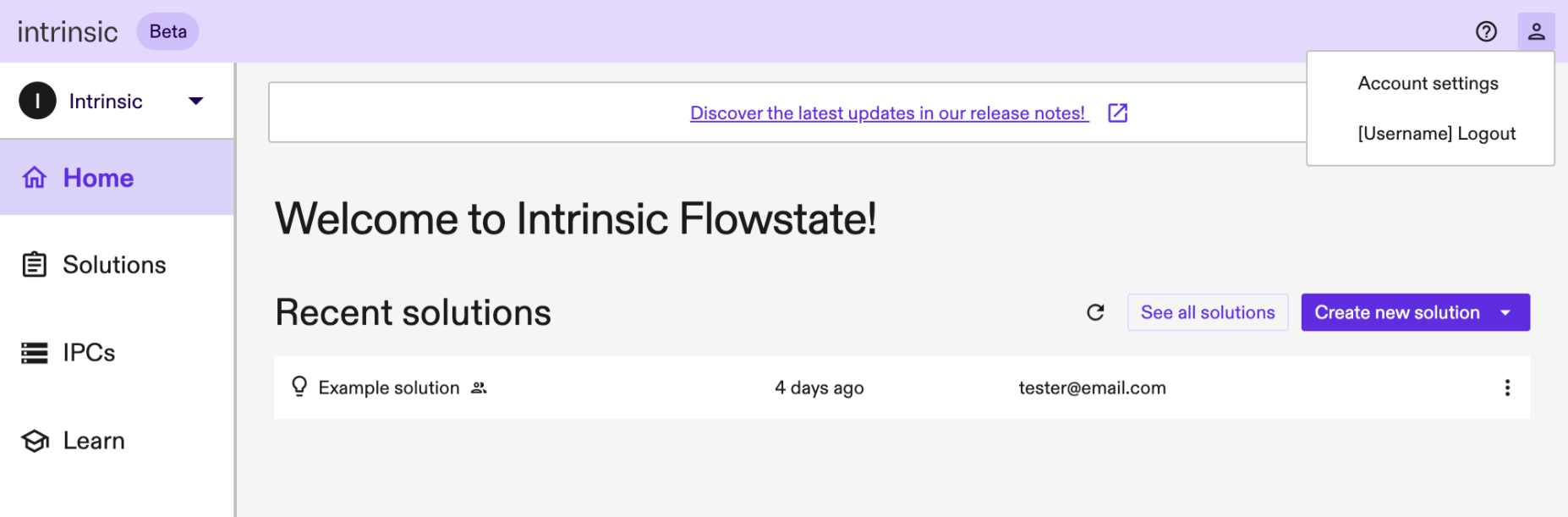
The account settings page allows you to update your full name, change the system theme in the portal, and (if needed) delete your account.
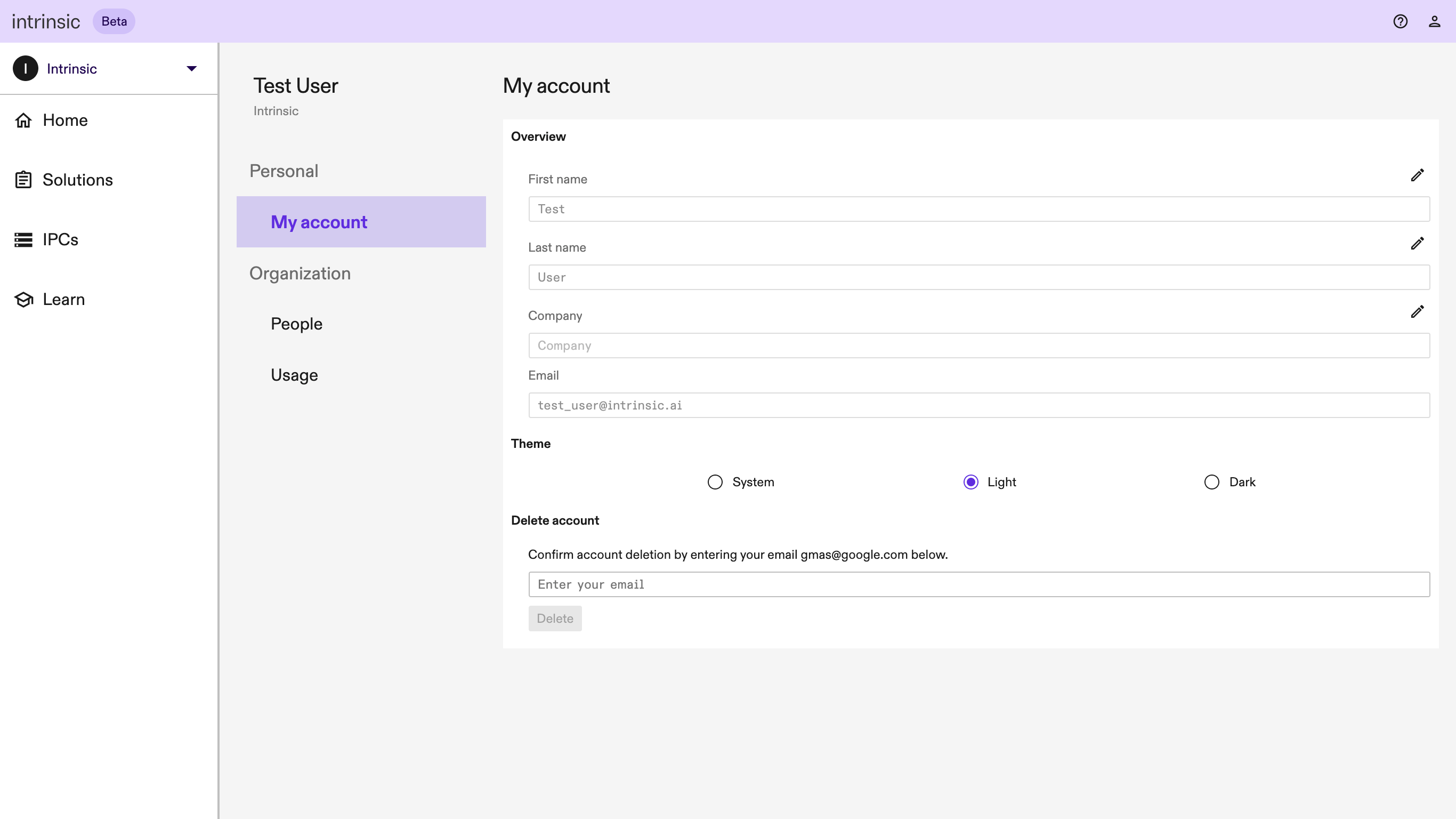
- Change Full Name You can change the full name displayed in Flowstate by clicking on the pencil icon to the right of Full name. After entering your updated full Name, click Save. You’ll see a confirmation at the bottom of the screen ("Profile updated")
- System Theme in Portal. To use the Portal in light mode, dark mode, or to use your system's default, click on the appropriate radio button to see a preview of that experience. The setting will automatically save, so you may close the Account settings dialog.
- Delete Account. If you wish to delete your account, please enter your email address (as displayed on the screen) and click Delete.